Kafka
Connect a Kafka cluster step by step: the broker, how it signs clients in, the schema registry, and what is read.
Connect it
- Name it: what to call this connection, and the deployment it belongs to.
- Name the broker: where it runs, and the bootstrap address of the cluster.
- Choose how the broker authenticates: sASL, a client certificate or a cloud identity.
- Add the broker credentials: the SASL username and password.
- Add the certificates: the client certificate, and the CA if the broker's is privately signed.
- Point it at the schema registry: optional: the registry, with its own credentials.
- Choose what is read: optional: narrow it to some topics.
- Test the connection: check Convalesce can reach it with what you entered.
- Choose how often: how often Convalesce reads it.
- Review and connect: check everything, then save the connection.
Convalesce reads the topics on your Kafka cluster and, if you name a schema registry, the schema of each one. It connects as an ordinary client, over an encrypted connection.
The connect screen knows the common services (Confluent Cloud, Amazon MSK, Azure Event Hubs, Google Cloud Managed Kafka, IBM Event Streams, Redpanda) and fills in what follows from each, and it works with any other cluster that has a public listener.
Convalesce is a hosted service, so it connects to your tool over the internet. Nothing is installed on your side.
Before you start
Have these ready and the rest takes a few minutes:
- The bootstrap address of your brokers, on a listener that is reachable from the internet.
- A credential the broker accepts: a username and password, a client certificate, an AWS access key for MSK, or a Google service account key.
- The schema registry's address and credential, if you have one.
Connect it
In Convalesce, open Integrations, choose Kafka, and follow the steps. Each one is shown below as it looks on screen, with what it asks for and anything to copy and run.
The steps depend on one choice: Choose how the broker authenticates. Pick yours here, and every step, picture and script below follows it.
An API key and secret. This is how Confluent Cloud, Event Hubs and IBM Event Streams authenticate.
Step 1 of 10: Name it
What to call this connection, and the deployment it belongs to.
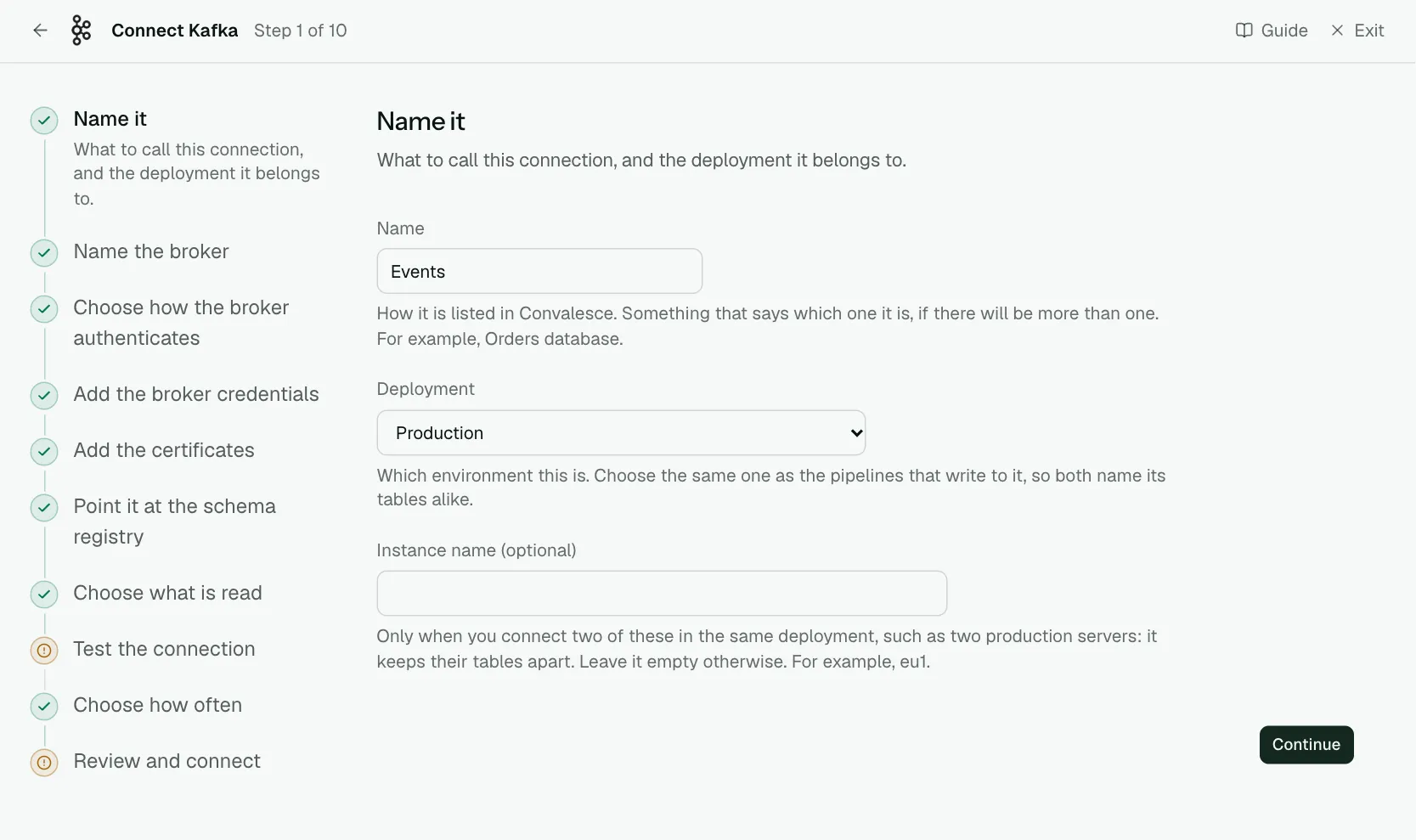
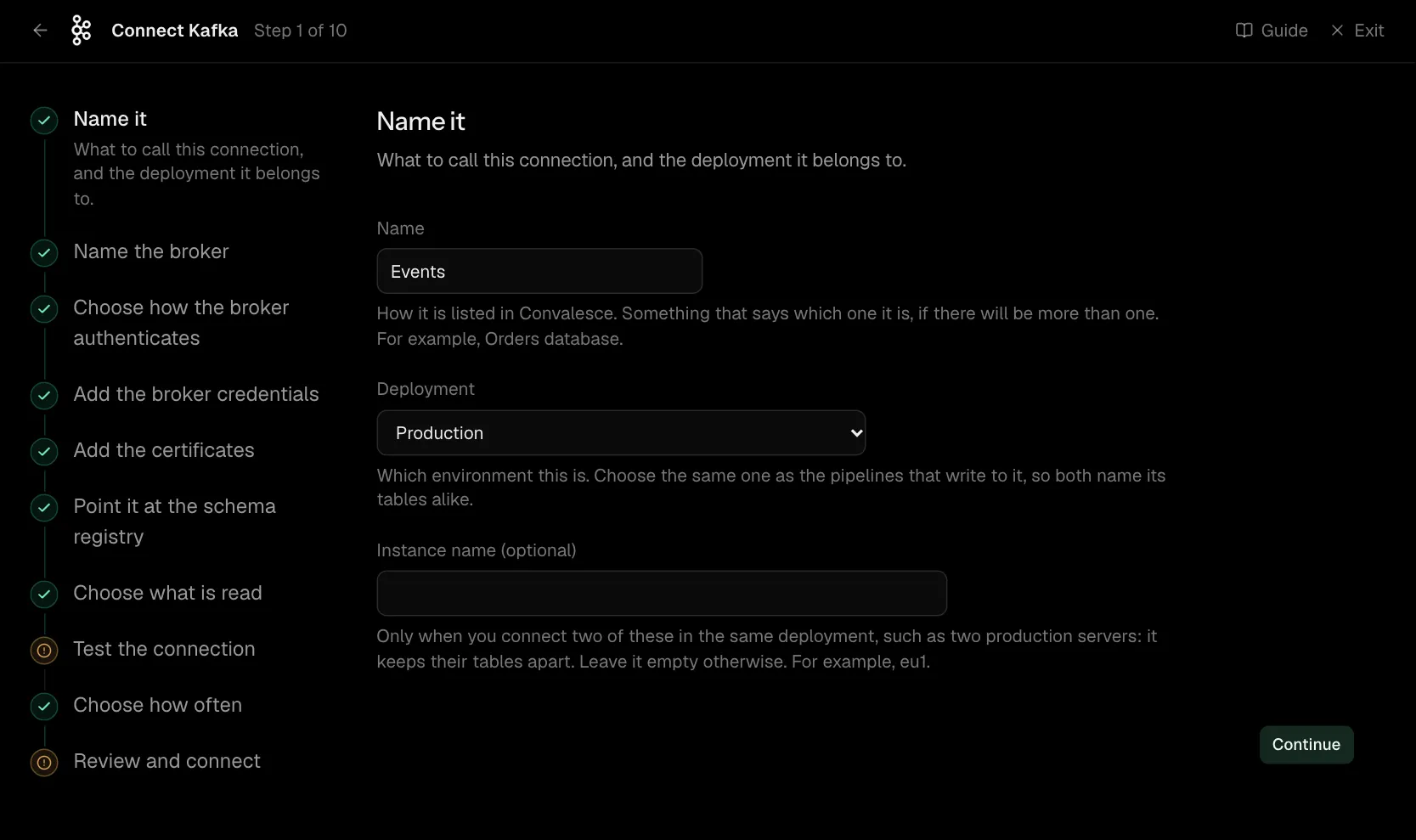
| What it asks for | Needed | What to enter |
|---|---|---|
| Name | Yes | How it is listed in Convalesce. Something that says which one it is, if there will be more than one. For example, Orders database. |
| Deployment | Yes | Which environment this is. Choose the same one as the pipelines that write to it, so both name its tables alike. Choose one of: Production, Staging, Development, Test, Quality assurance, User acceptance, Pre-production, Sandbox. |
| Instance name | Optional | Only when you connect two of these in the same deployment, such as two production servers: it keeps their tables apart. Leave it empty otherwise. For example, eu1. |
Step 2 of 10: Name the broker
Where it runs, and the bootstrap address of the cluster.
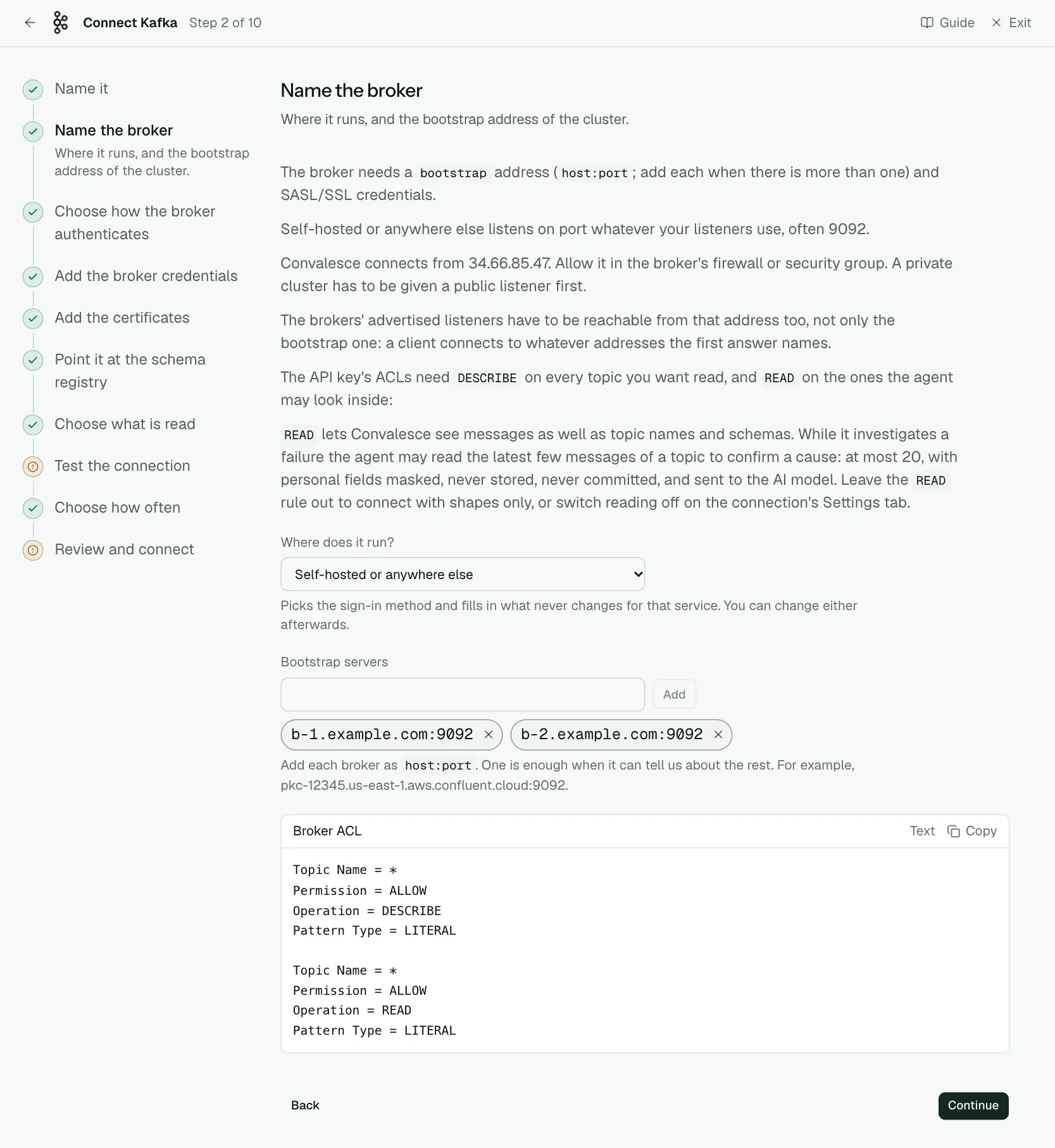
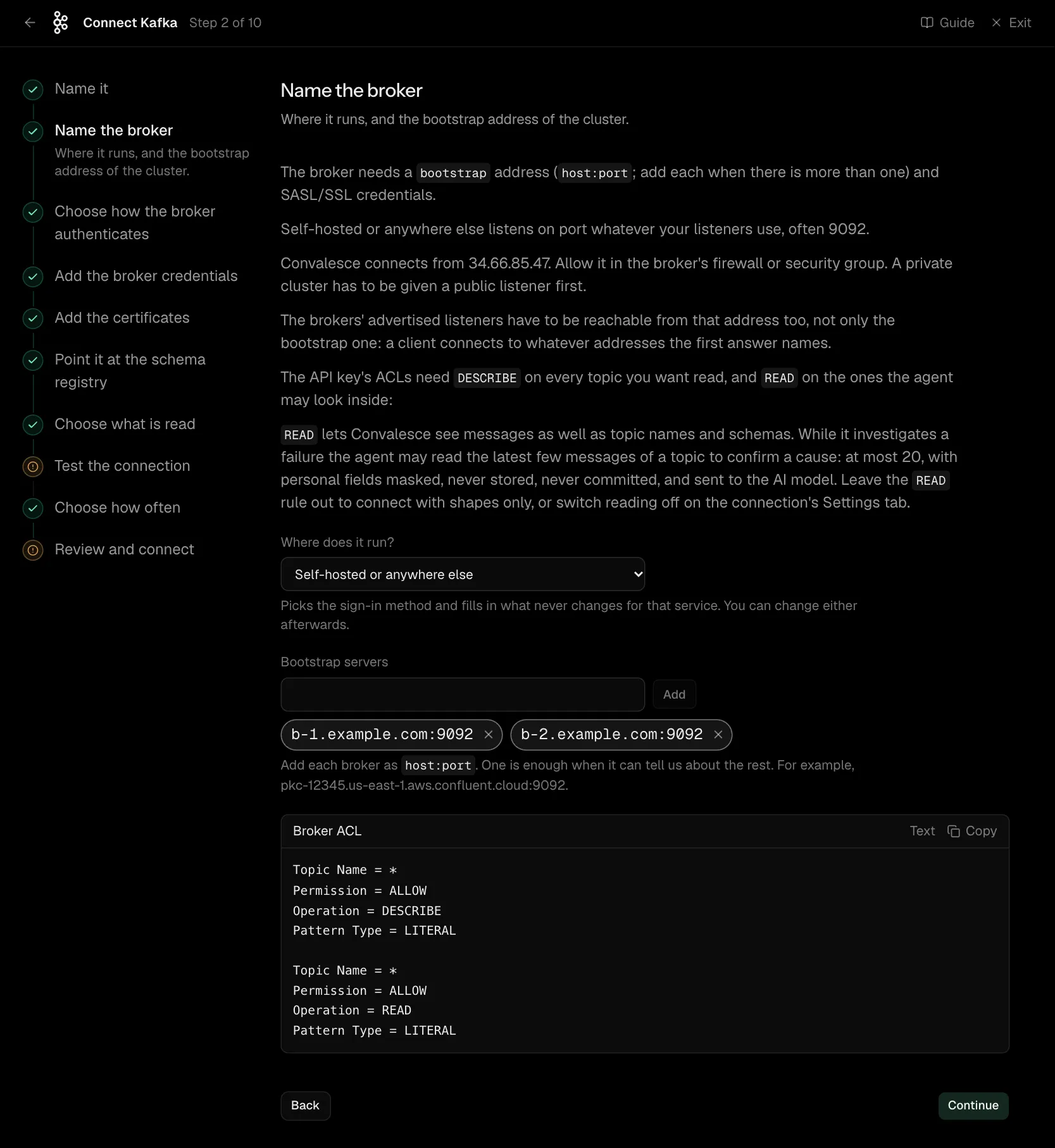
The broker needs a bootstrap address (host:port; add each when there is more than one) and SASL/SSL credentials.
Self-hosted or anywhere else listens on port whatever your listeners use, often 9092.
Convalesce connects from 34.66.85.47. Allow it in the broker's firewall or security group. A private cluster has to be given a public listener first.
The brokers' advertised listeners have to be reachable from that address too, not only the bootstrap one: a client connects to whatever addresses the first answer names.
The API key's ACLs need DESCRIBE on every topic you want read, and READ on the ones the agent may look inside:
READ lets Convalesce see messages as well as topic names and schemas. While it investigates a failure the agent may read the latest few messages of a topic to confirm a cause: at most 20, with personal fields masked, never stored, never committed, and sent to the AI model. Leave the READ rule out to connect with shapes only, or switch reading off on the connection's Settings tab.
| What it asks for | Needed | What to enter |
|---|---|---|
| Where does it run? | Yes | Picks the sign-in method and fills in what never changes for that service. You can change either afterwards. Choose one of: Confluent Cloud, Amazon MSK, Azure Event Hubs, Google Cloud Managed Kafka, IBM Event Streams, Redpanda, Self-hosted or anywhere else. |
| Bootstrap servers | Yes | Add each broker as host:port. One is enough when it can tell us about the rest. For example, pkc-12345.us-east-1.aws.confluent.cloud:9092. |
Topic Name = *
Permission = ALLOW
Operation = DESCRIBE
Pattern Type = LITERAL

Topic Name = *
Permission = ALLOW
Operation = READ
Pattern Type = LITERAL
Step 3 of 10: Choose how the broker authenticates
SASL, a client certificate or a cloud identity.
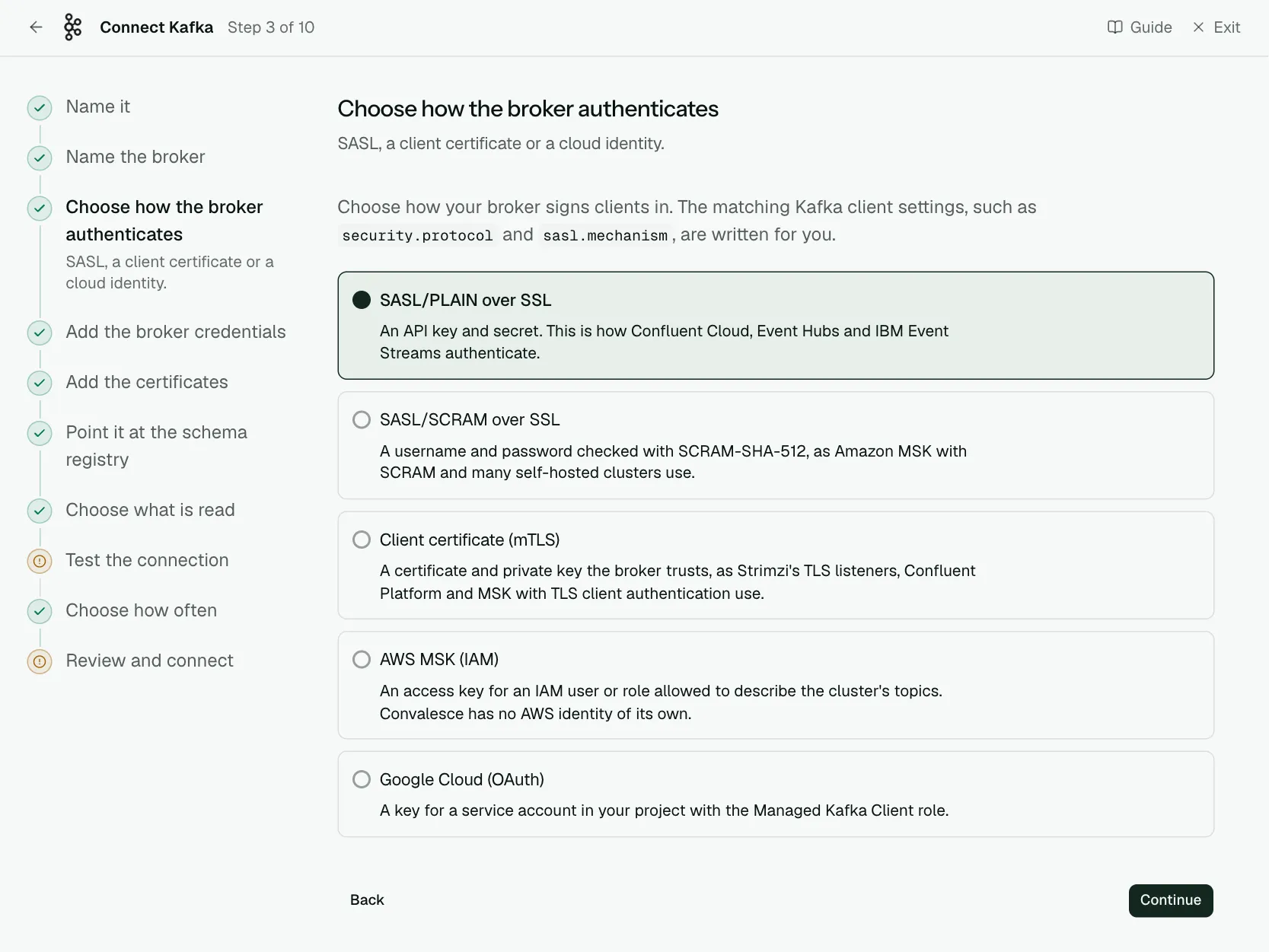
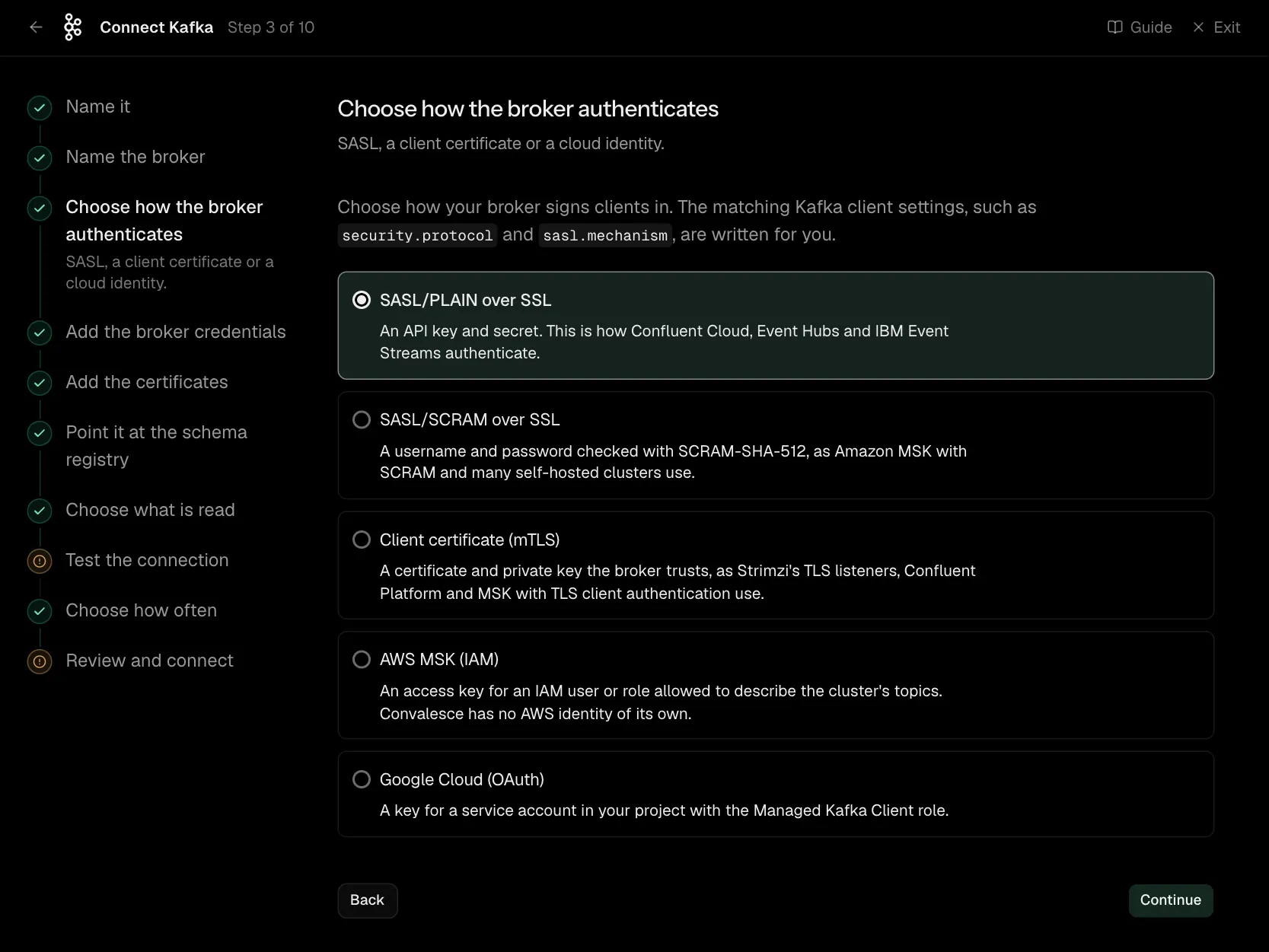
Choose how your broker signs clients in. The matching Kafka client settings, such as security.protocol and sasl.mechanism, are written for you.
Step 4 of 10: Add the broker credentials
The SASL username and password.
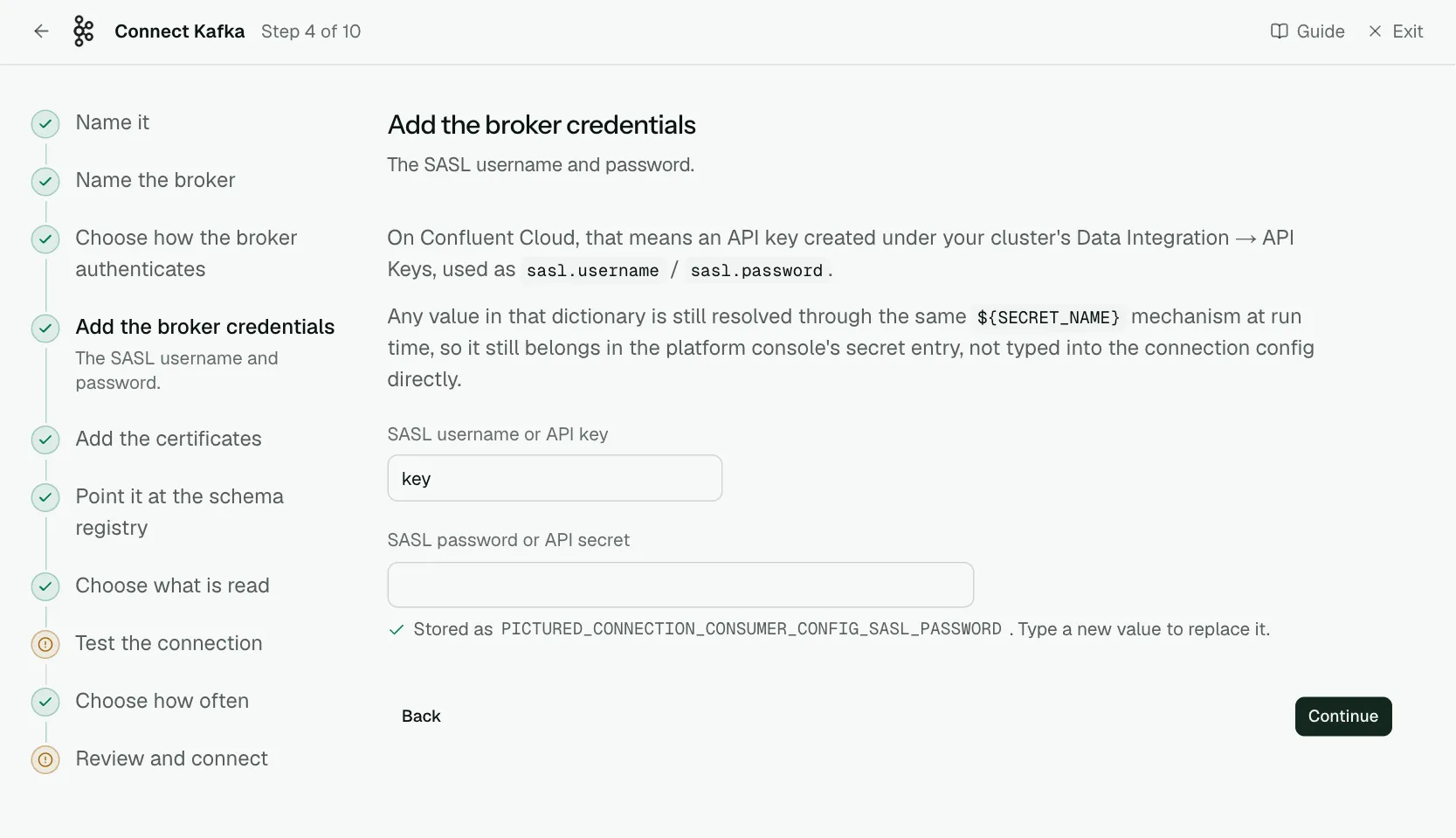
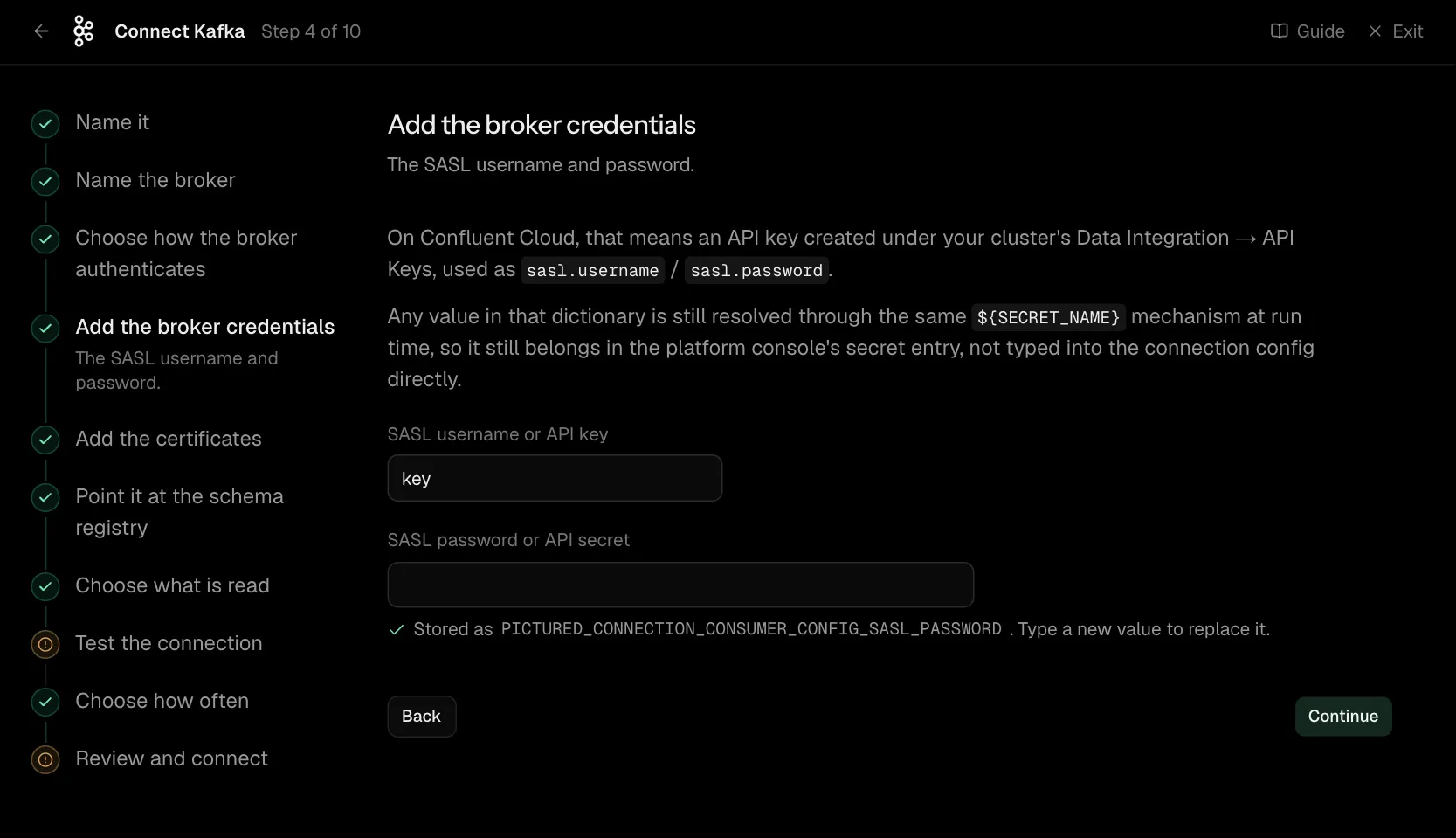
On Confluent Cloud, that means an API key created under your cluster's Data Integration → API Keys, used as sasl.username / sasl.password.
Any value in that dictionary is still resolved through the same ${SECRET_NAME} mechanism at run time, so it still belongs in the platform console's secret entry, not typed into the connection config directly.
| What it asks for | Needed | What to enter |
|---|---|---|
| SASL username or API key | Yes | |
| SASL password or API secret | Yes | Stored encrypted the moment you enter it, and shown to no one afterwards. |
Step 5 of 10: Add the certificates
The client certificate, and the CA if the broker's is privately signed.
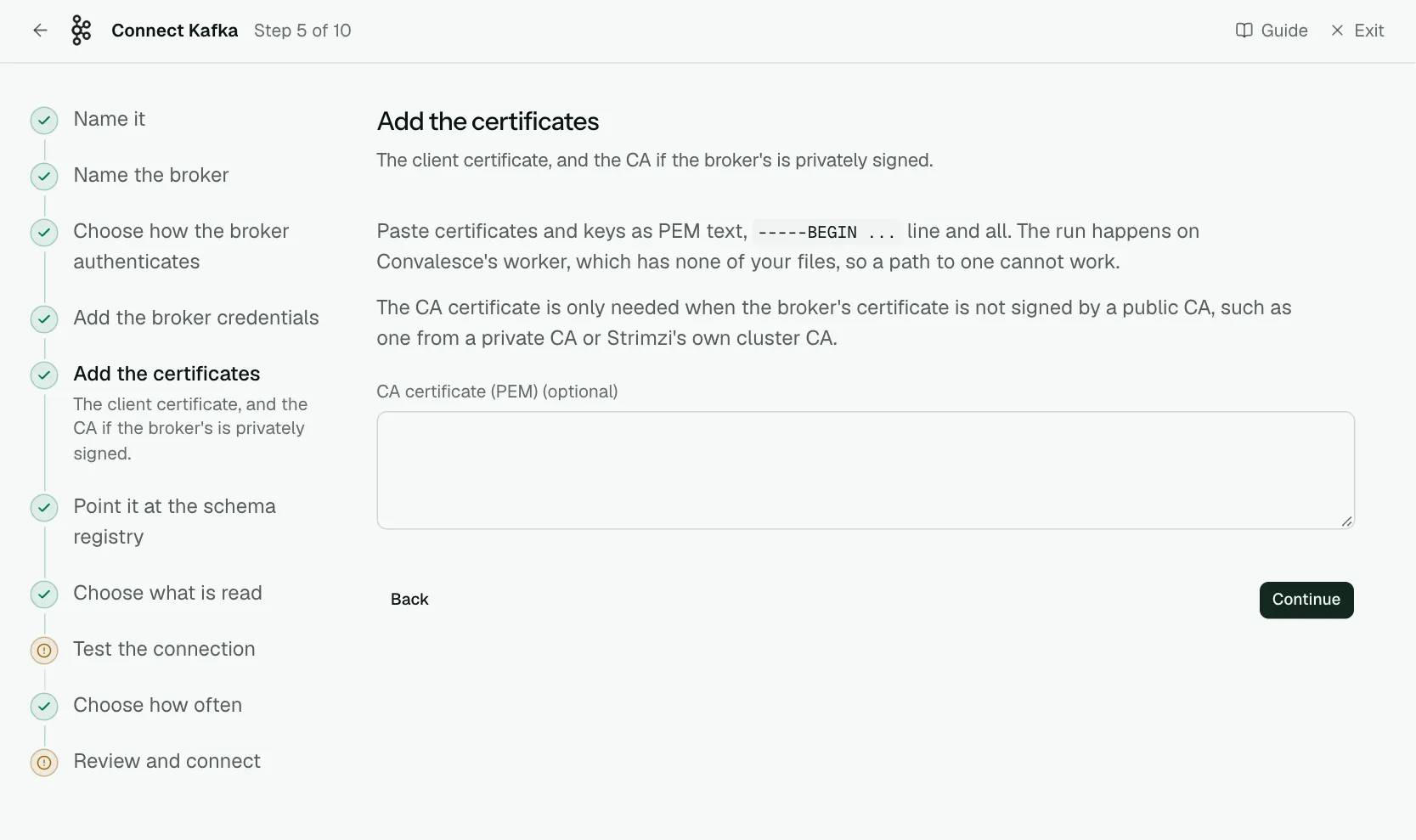
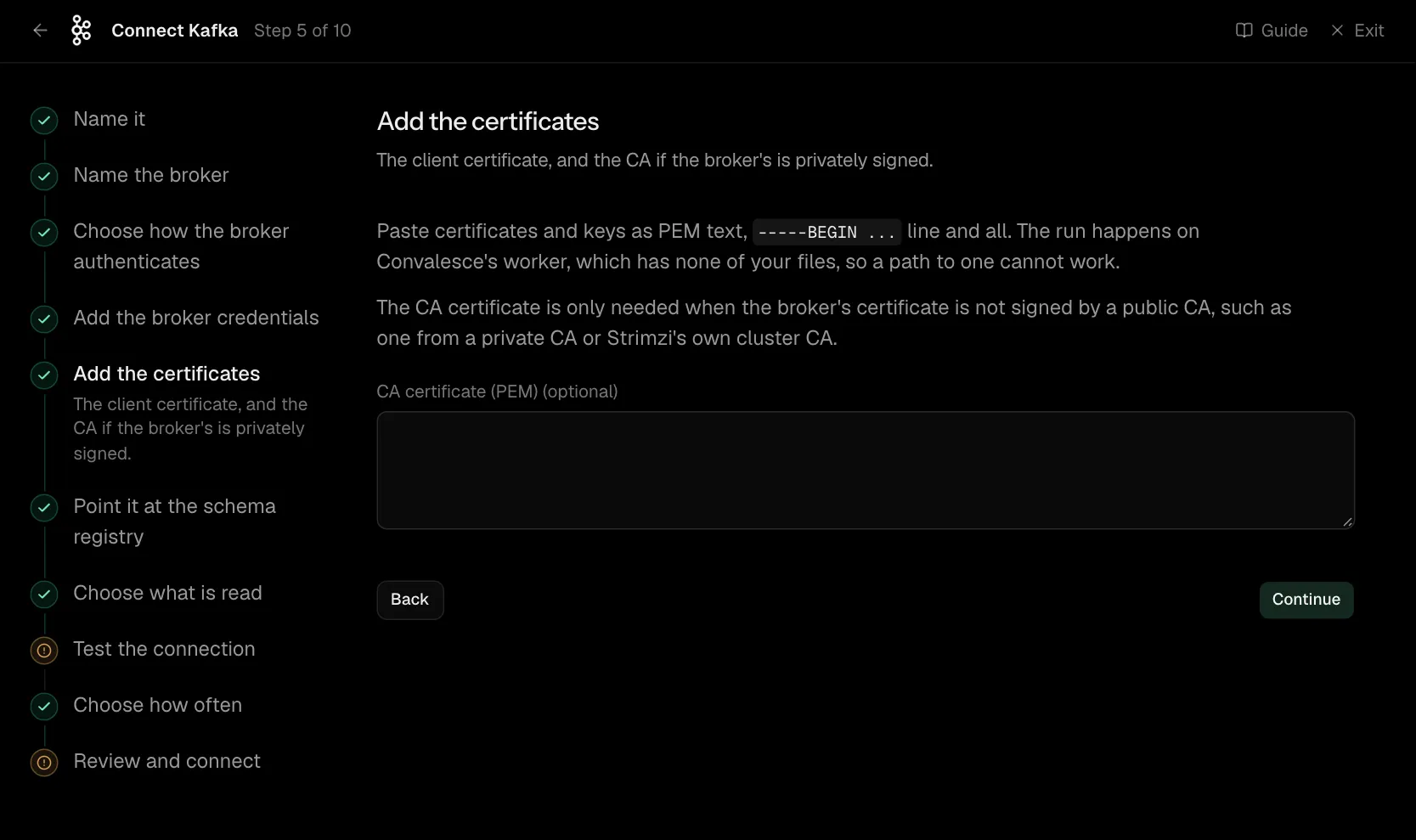
Paste certificates and keys as PEM text, -----BEGIN ... line and all. The run happens on Convalesce's worker, which has none of your files, so a path to one cannot work.
The CA certificate is only needed when the broker's certificate is not signed by a public CA, such as one from a private CA or Strimzi's own cluster CA.
| What it asks for | Needed | What to enter |
|---|---|---|
| CA certificate (PEM) | Optional |
Step 6 of 10: Point it at the schema registry (optional)
Optional: the registry, with its own credentials.
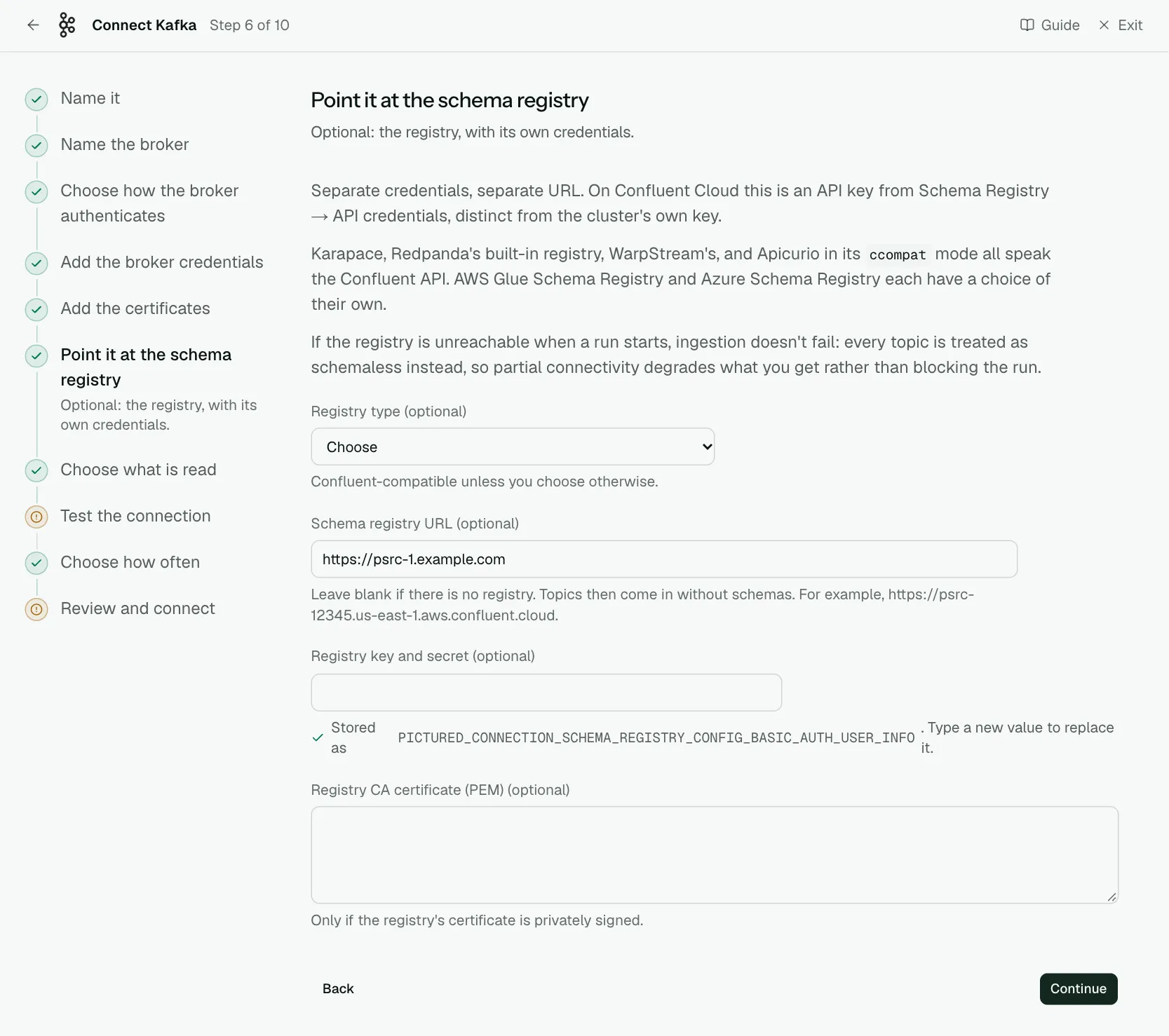
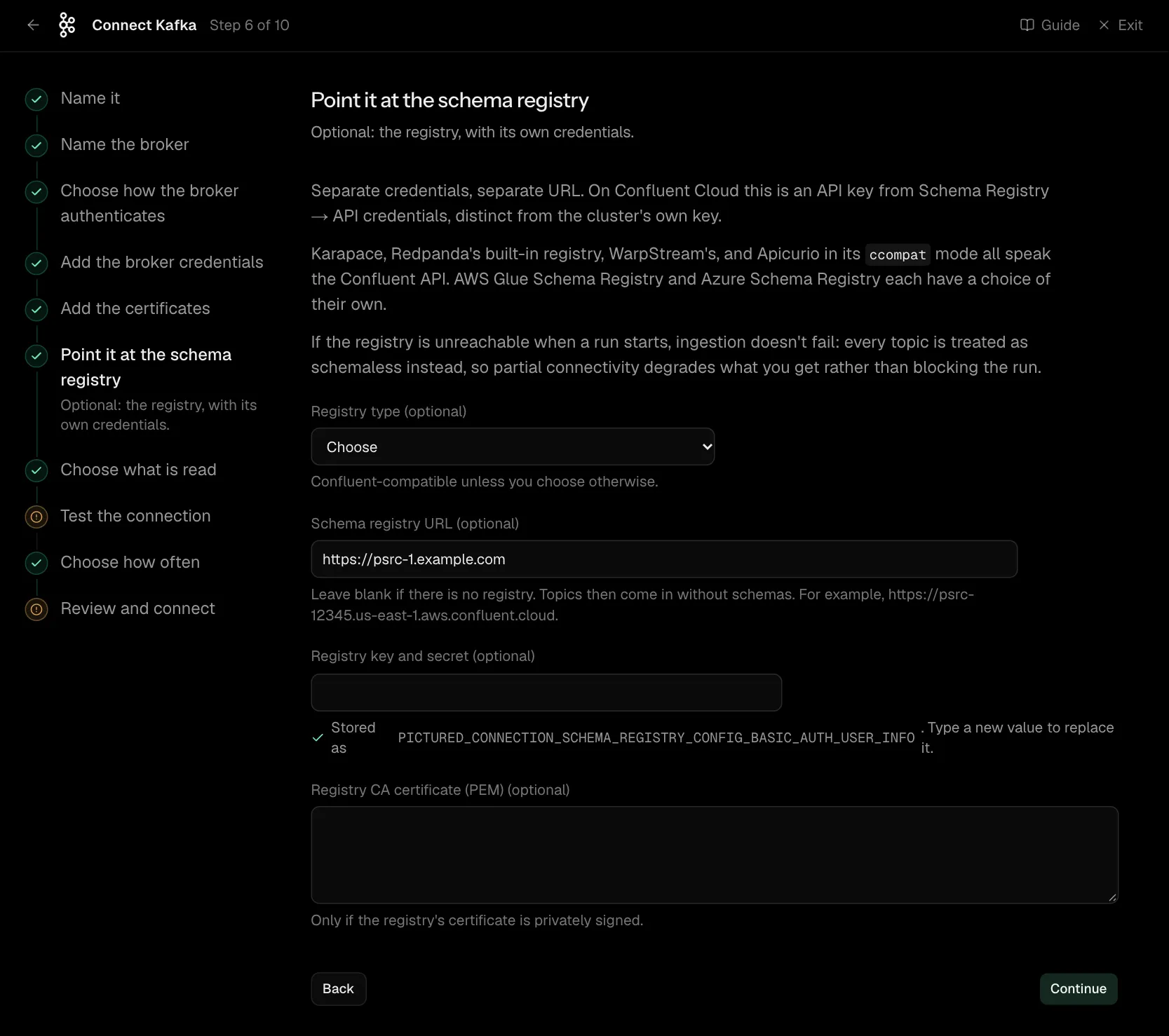
Separate credentials, separate URL. On Confluent Cloud this is an API key from Schema Registry → API credentials, distinct from the cluster's own key.
Karapace, Redpanda's built-in registry, WarpStream's, and Apicurio in its ccompat mode all speak the Confluent API. AWS Glue Schema Registry and Azure Schema Registry each have a choice of their own.
If the registry is unreachable when a run starts, ingestion doesn't fail: every topic is treated as schemaless instead, so partial connectivity degrades what you get rather than blocking the run.
| What it asks for | Needed | What to enter |
|---|---|---|
| Registry type | Optional | Confluent-compatible unless you choose otherwise. Choose one of: Confluent or Confluent-compatible, AWS Glue Schema Registry, Azure Schema Registry. |
| Schema registry URL | Optional | Leave blank if there is no registry. Topics then come in without schemas. For example, https://psrc-12345.us-east-1.aws.confluent.cloud. |
| Registry key and secret | Optional | As key:secret, in one value. Leave blank if the registry takes no credentials. Stored encrypted the moment you enter it, and shown to no one afterwards. |
| Registry CA certificate (PEM) | Optional | Only if the registry's certificate is privately signed. |
Step 7 of 10: Choose what is read (optional)
Optional: narrow it to some topics.
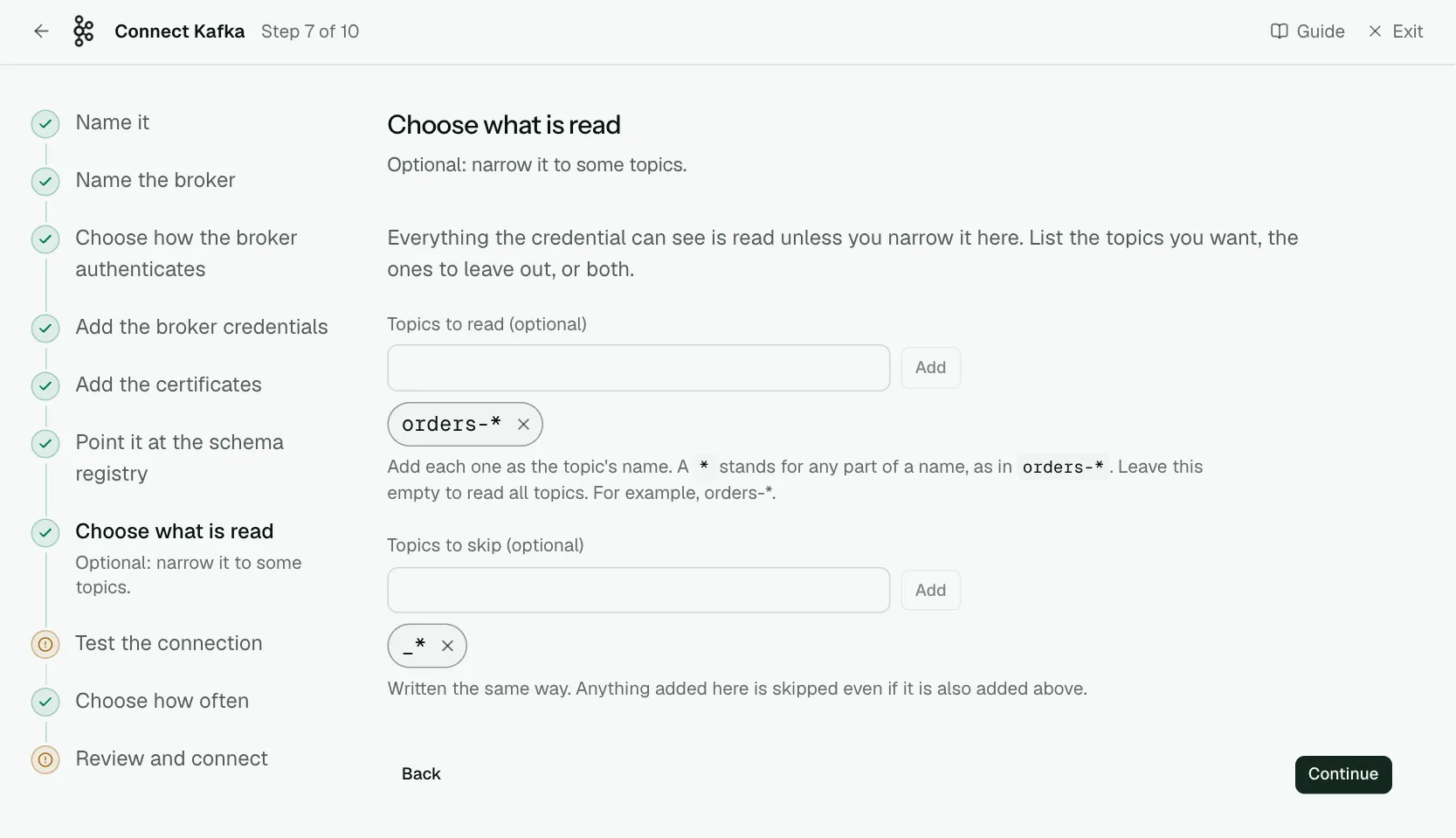
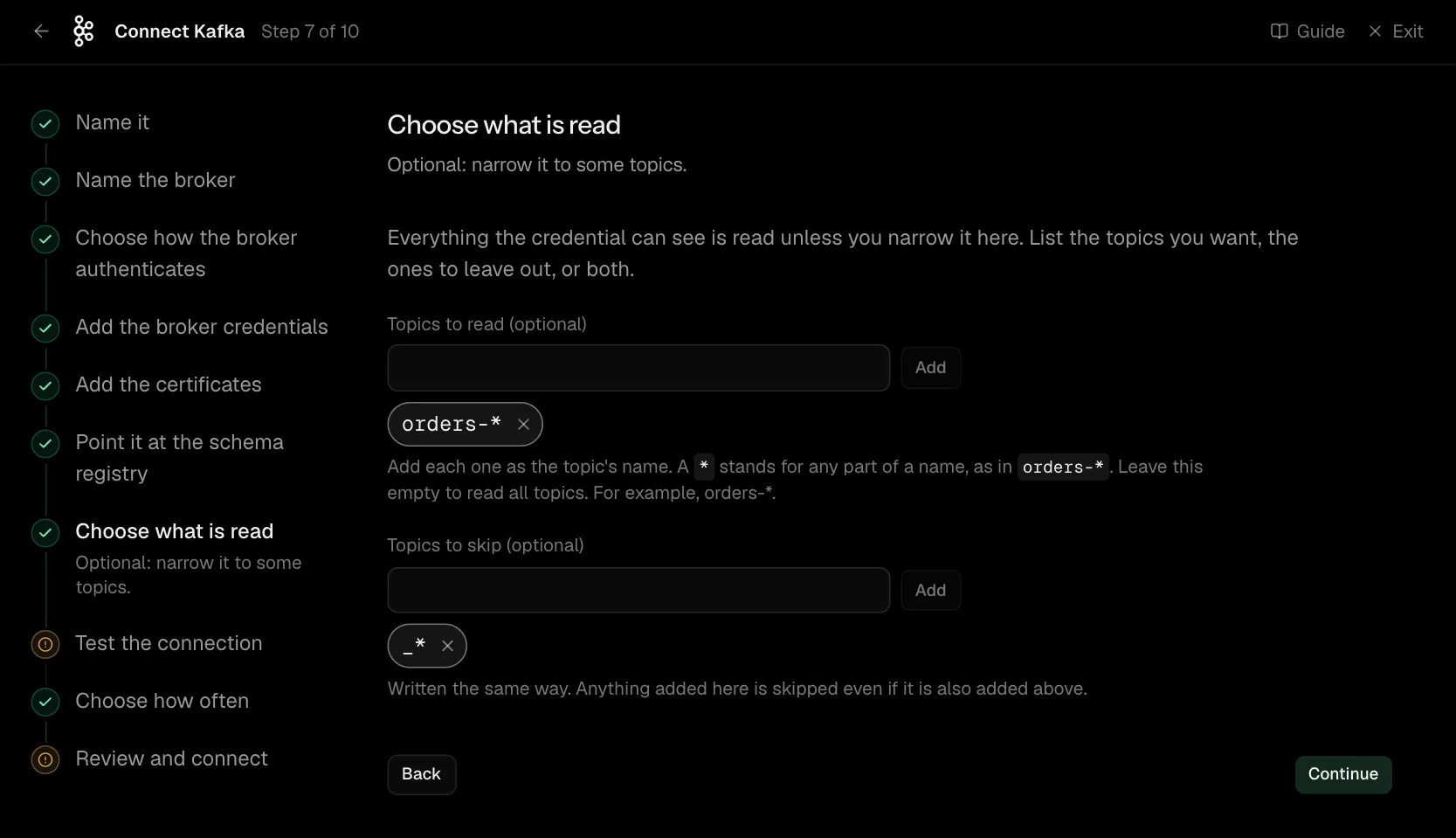
Everything the credential can see is read unless you narrow it here. List the topics you want, the ones to leave out, or both.
| What it asks for | Needed | What to enter |
|---|---|---|
| Topics to read | Optional | Add each one as the topic's name. A * stands for any part of a name, as in orders-*. Leave this empty to read all topics. For example, orders-*. |
| Topics to skip | Optional | Written the same way. Anything added here is skipped even if it is also added above. |
Step 8 of 10: Test the connection
Check Convalesce can reach it with what you entered.
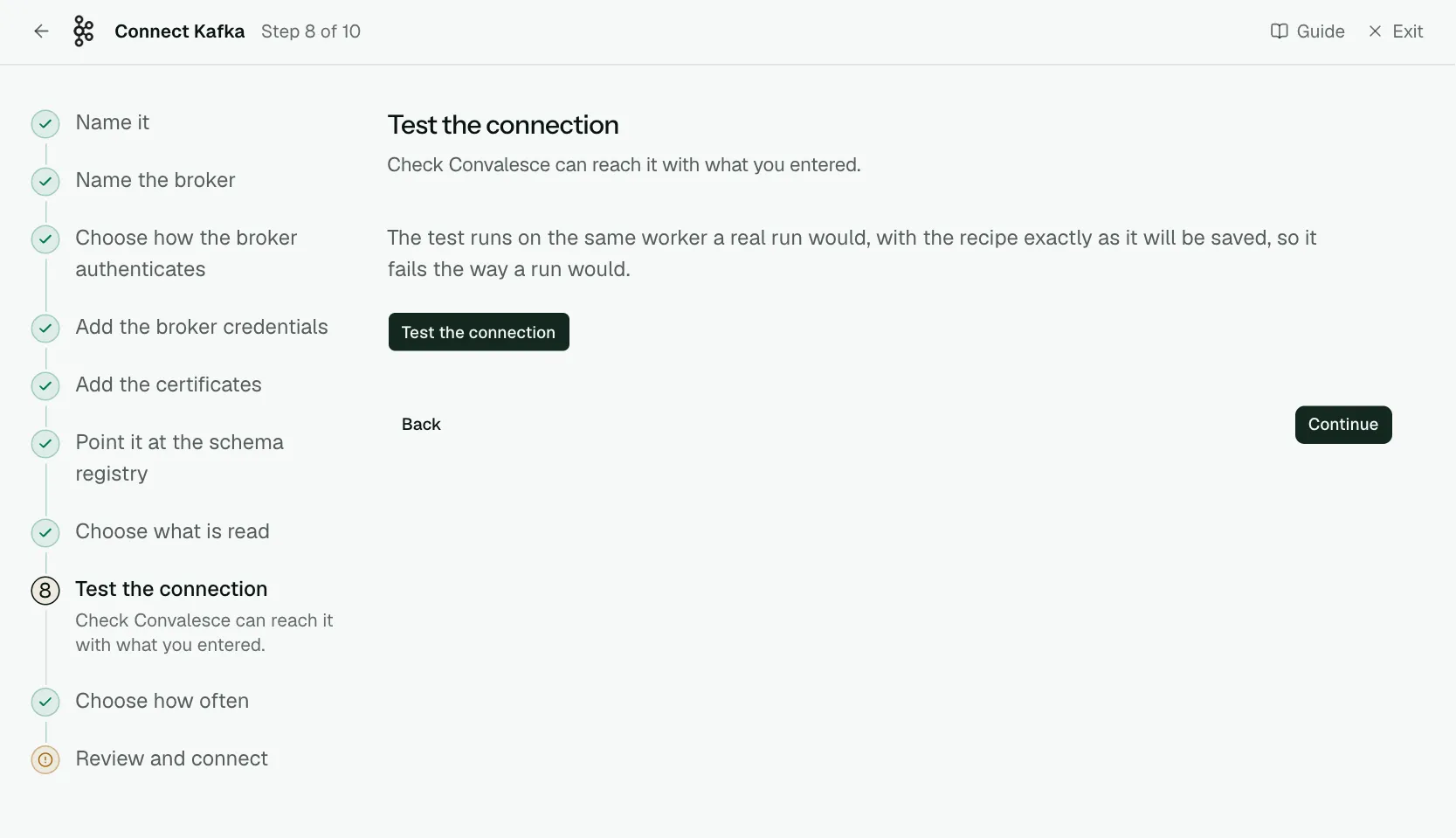
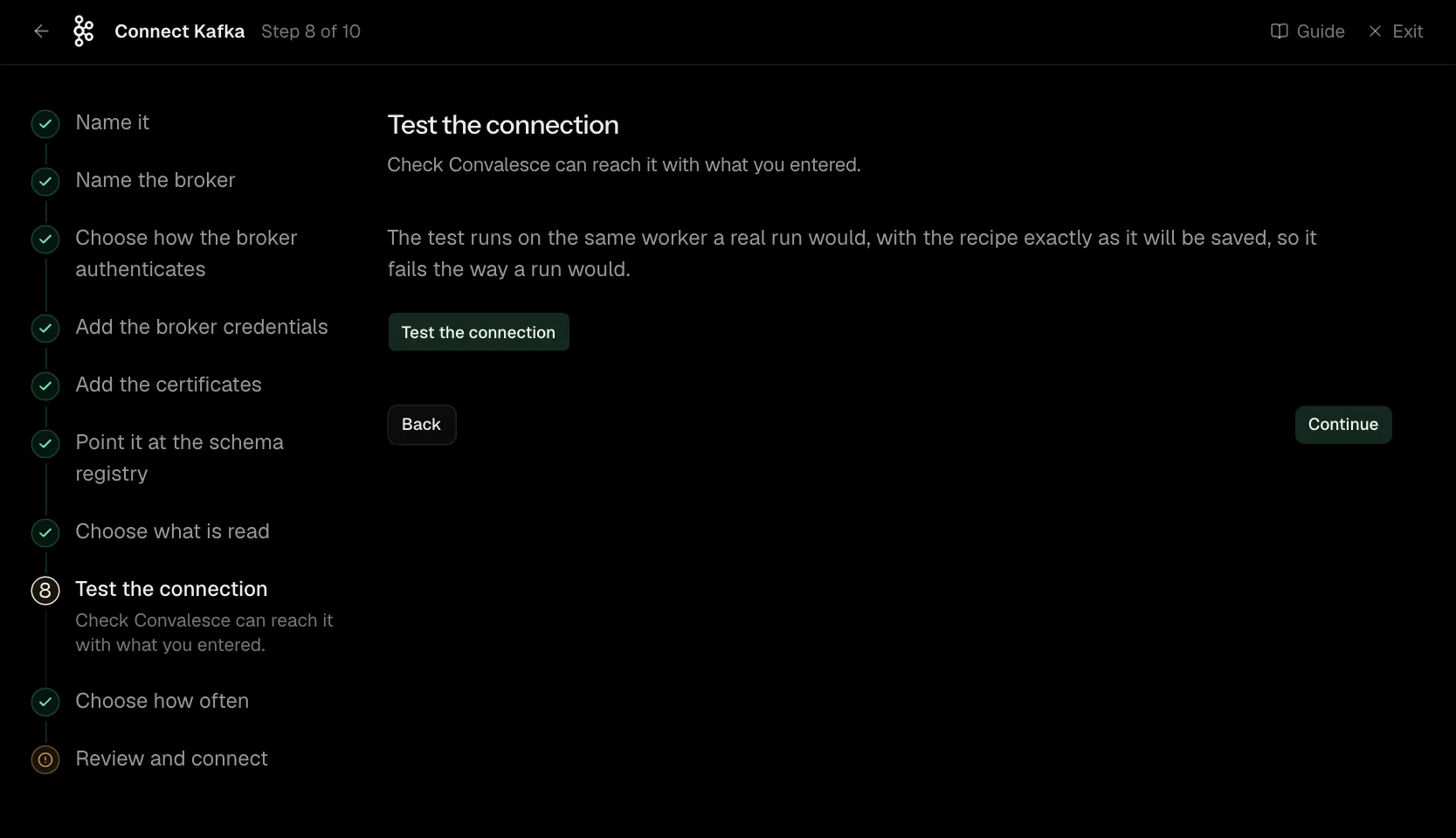
The test runs on the same worker a real run would, with the recipe exactly as it will be saved, so it fails the way a run would.
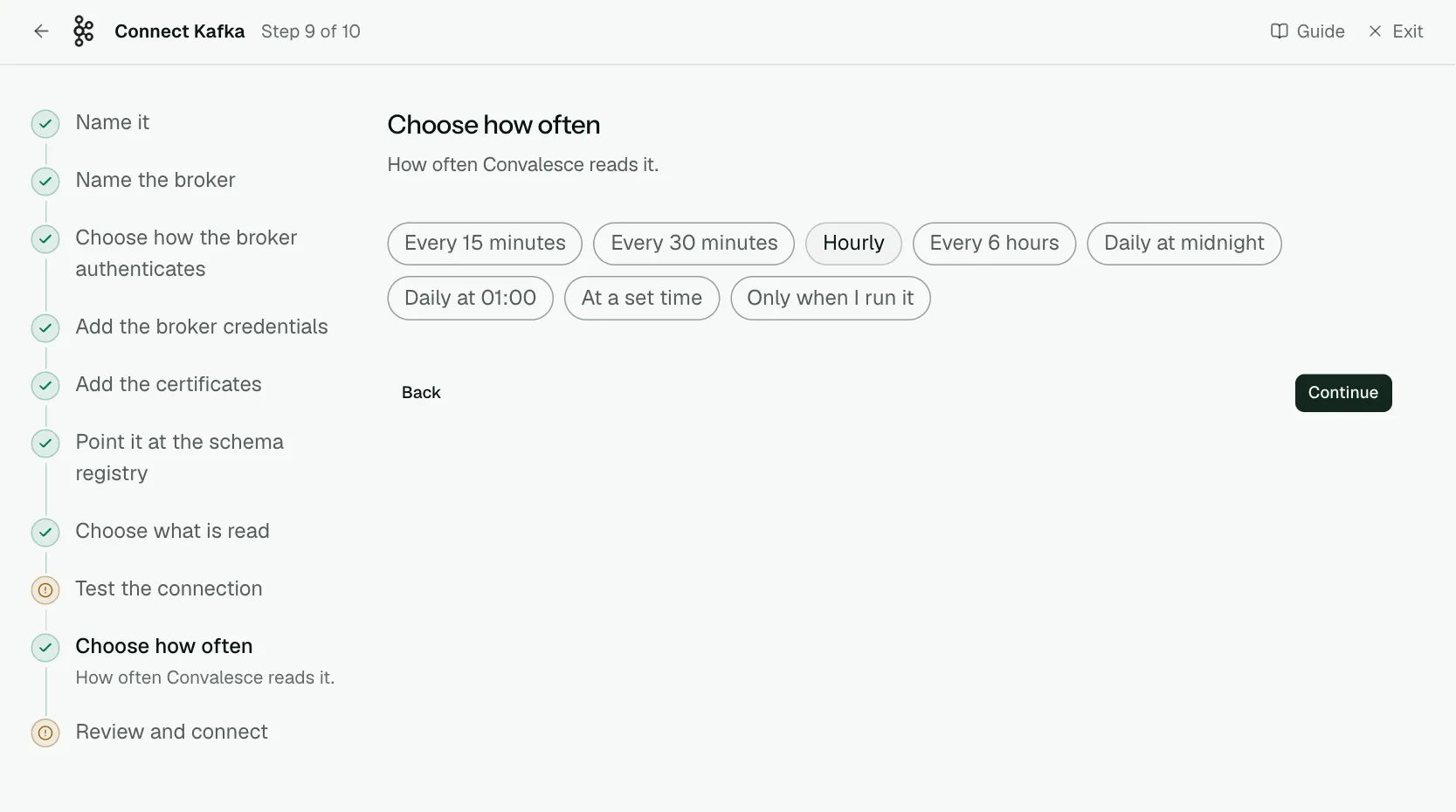
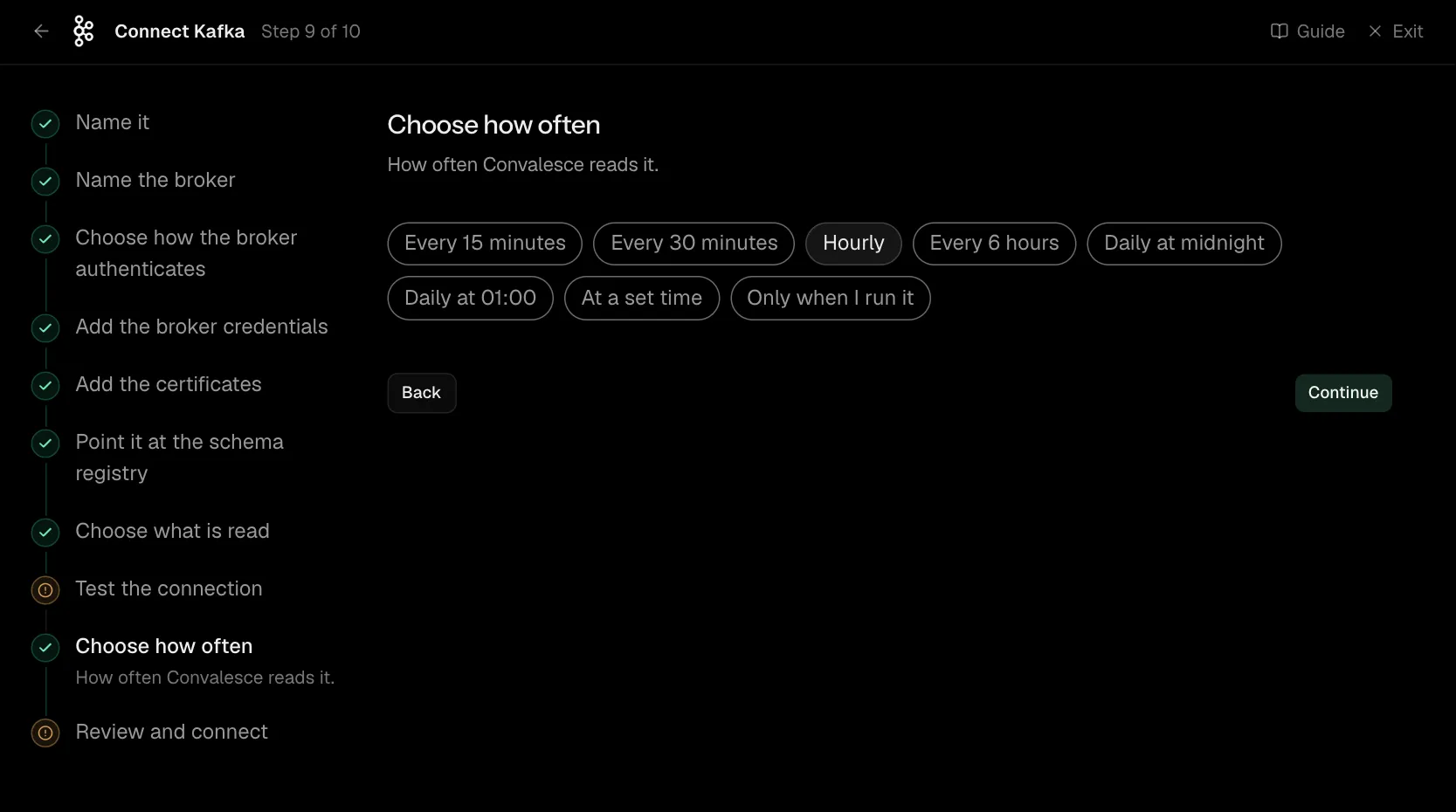
Step 9 of 10: Choose how often
How often Convalesce reads it.
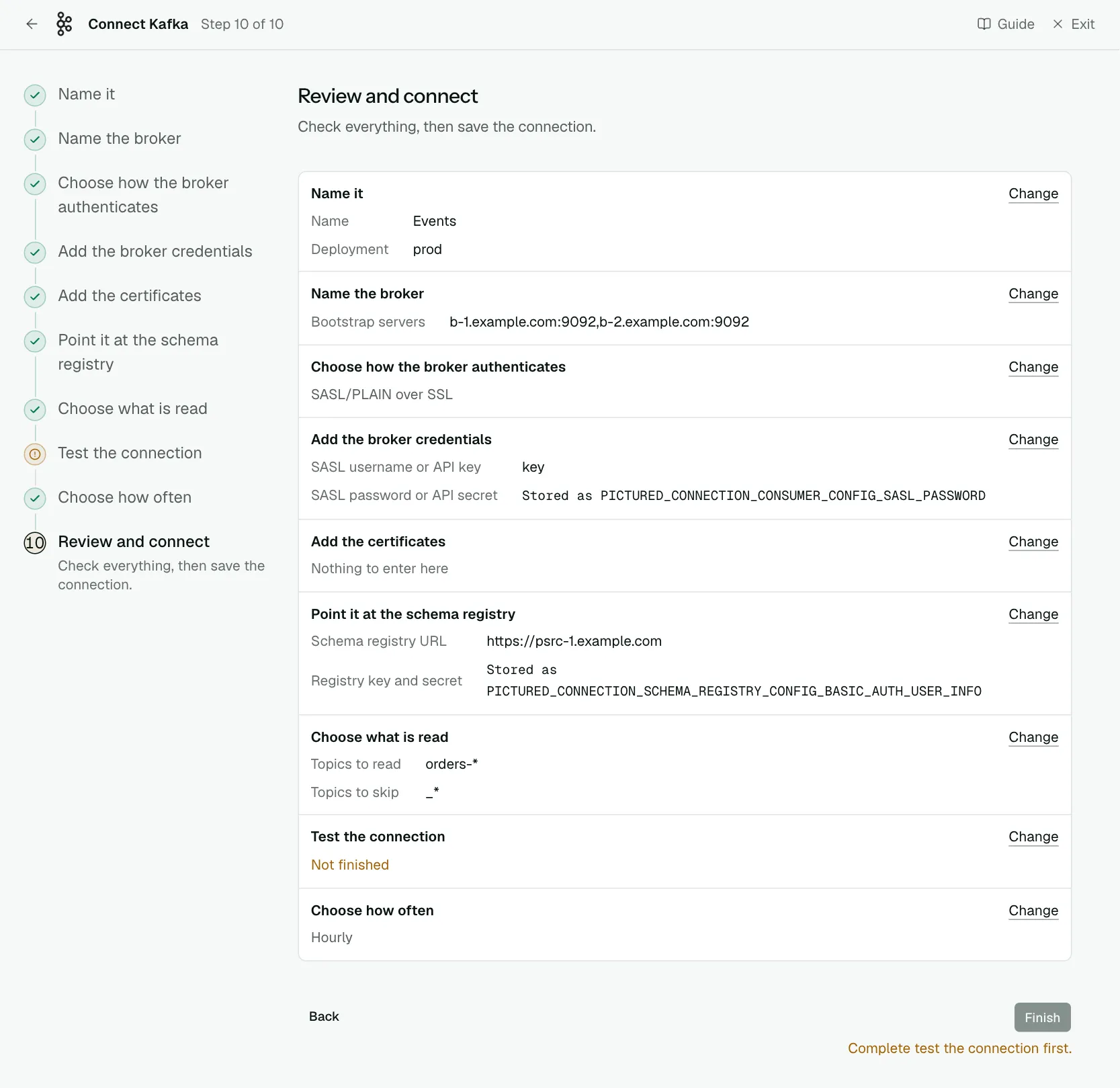
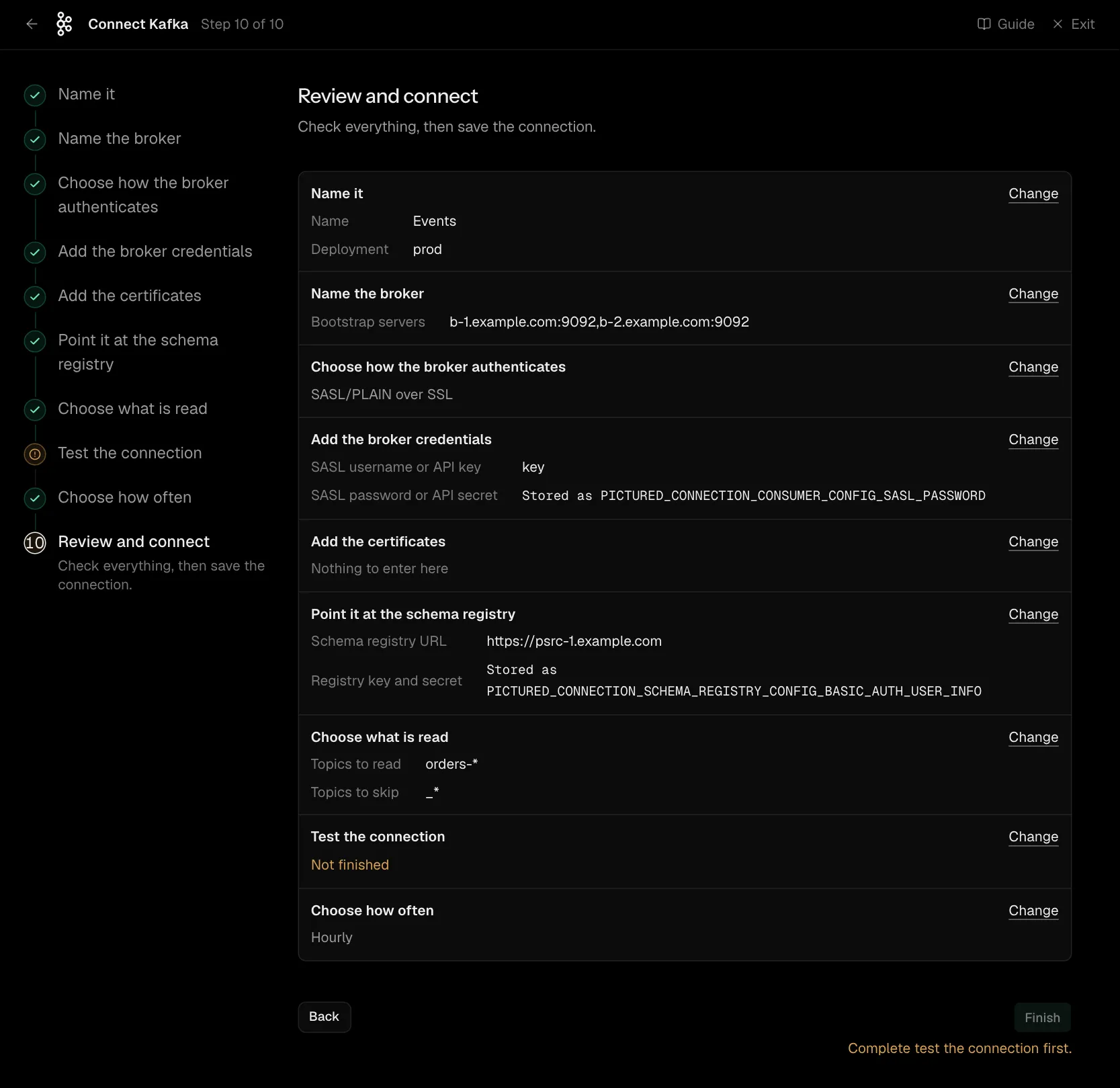
Step 10 of 10: Review and connect
Check everything, then save the connection.
Network
Convalesce connects from 34.66.85.47. Allow it in the broker's firewall or security group. A private cluster has to be given a public listener first.
The brokers' advertised listeners have to be reachable from that address too, not only the bootstrap one: a client connects to whatever addresses the first answer names.
Settings
What the connect screen asks for
| Input | On the step | Needed |
|---|---|---|
| Name | Name it | Yes |
| Deployment | Name it | Yes |
| Instance name | Name it | Optional |
| Where does it run? | Name the broker | Yes |
| Bootstrap servers | Name the broker | Yes |
| SASL username or API key | Add the broker credentials | Yes |
| SASL password or API secret | Add the broker credentials | Yes |
| CA certificate (PEM) | Add the certificates | Optional |
| Registry type | Point it at the schema registry | Optional |
| Schema registry URL | Point it at the schema registry | Optional |
| Registry key and secret | Point it at the schema registry | Optional |
| Registry CA certificate (PEM) | Point it at the schema registry | Optional |
| Topics to read | Choose what is read | Optional |
| Topics to skip | Choose what is read | Optional |
| Client certificate (PEM) | Add the certificates | Yes |
| Private key (PEM) | Add the certificates | Yes |
| Private key password | Add the certificates | Optional |
| AWS region | Add the AWS access key | Yes |
| Access key ID | Add the AWS access key | Yes |
| AWS secret access key | Add the AWS access key | Yes |
| AWS session token | Add the AWS access key | Optional |
| Glue registry name | Point it at the schema registry | Yes |
| Service account key (JSON) | Add the service account key | Yes |
Set for you
These are the same on every connection. The connect screen does not ask for them.
| What it means | Setting |
|---|---|
| A topic that is deleted stays listed until you remove it. | stateful_ingestion.enabled: false |
Troubleshooting
- The test says it could not reach the broker. The bootstrap address and the addresses the brokers advertise all have to be public and allow
34.66.85.47. See Network access. - Authentication fails. Check the sign-in method matches the listener you gave: each listener speaks one.
- Topics arrive with no fields. Name the schema registry on its step, or check the key has read access to it.
- A certificate is not trusted. Paste the CA certificate as PEM text on the Add the certificates step.