S3
Connect an S3 bucket step by step: the path spec that turns files into datasets, the read-only user, and what is read.
Connect it
- Name it: what to call this connection, and the deployment it belongs to.
- Map files to datasets: which files make up which dataset.
- Create the read-only user: a read-only IAM user in your account, and its key.
- Add the access key: an access key for the reading identity.
- Test the connection: check Convalesce can reach it with what you entered.
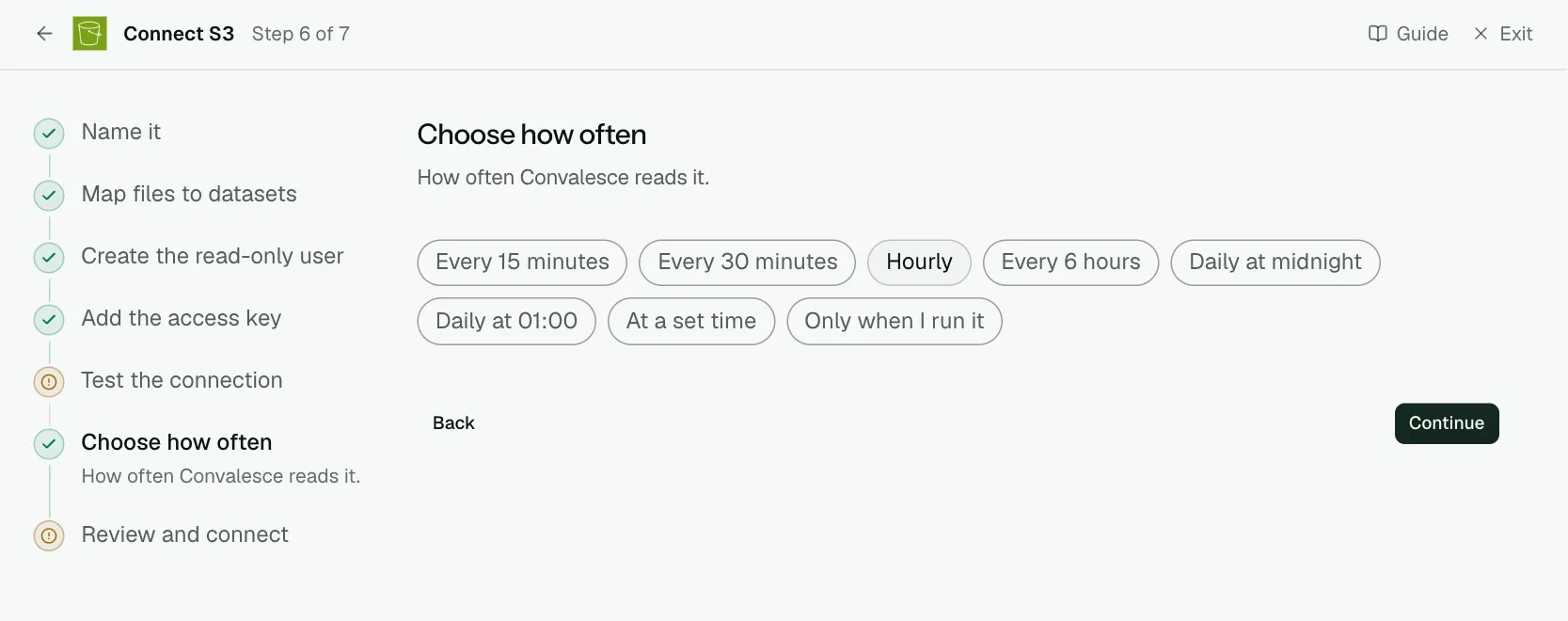
- Choose how often: how often Convalesce reads it.
- Review and connect: check everything, then save the connection.
Convalesce reads the files in your S3 bucket and turns them into datasets. You tell it which files make up which dataset with a path spec, and it reads through one read-only IAM user that you create.
The connect screen writes that user's policy for the bucket your path spec names.
Convalesce is a hosted service, so it connects to AWS or your storage over the internet. Nothing is installed on your side.
Before you start
Have these ready and the rest takes a few minutes:
- The bucket and the layout of the files in it, to write the path spec.
- The region the bucket is in.
- The AWS CLI signed in as an IAM admin, to run one block of commands. Or an existing AWS connection in Convalesce whose key you want to share.
Connect it
In Convalesce, open Integrations, choose S3, and follow the steps. Each one is shown below as it looks on screen, with what it asks for and anything to copy and run.
Step 1 of 7: Name it
What to call this connection, and the deployment it belongs to.
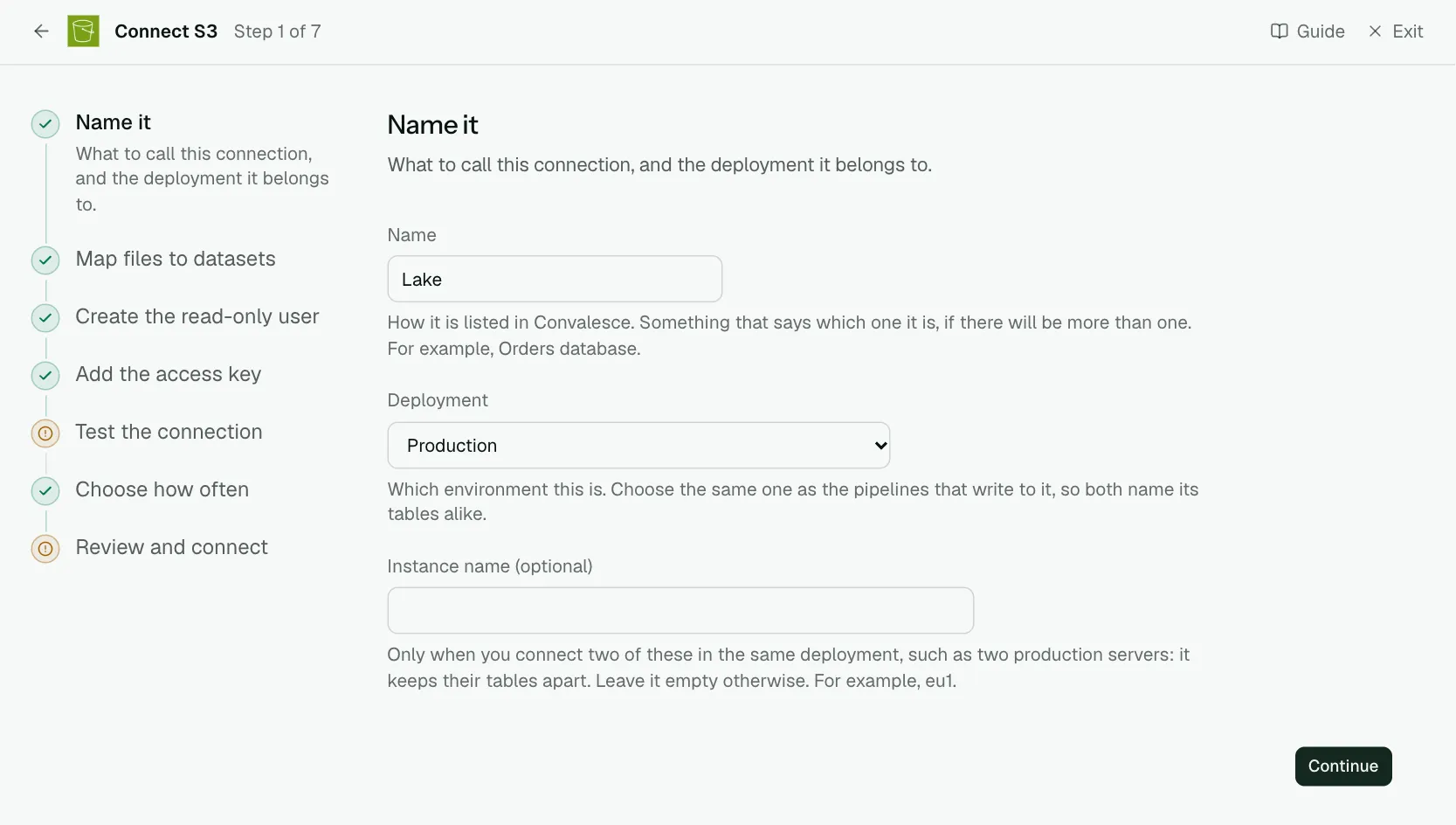
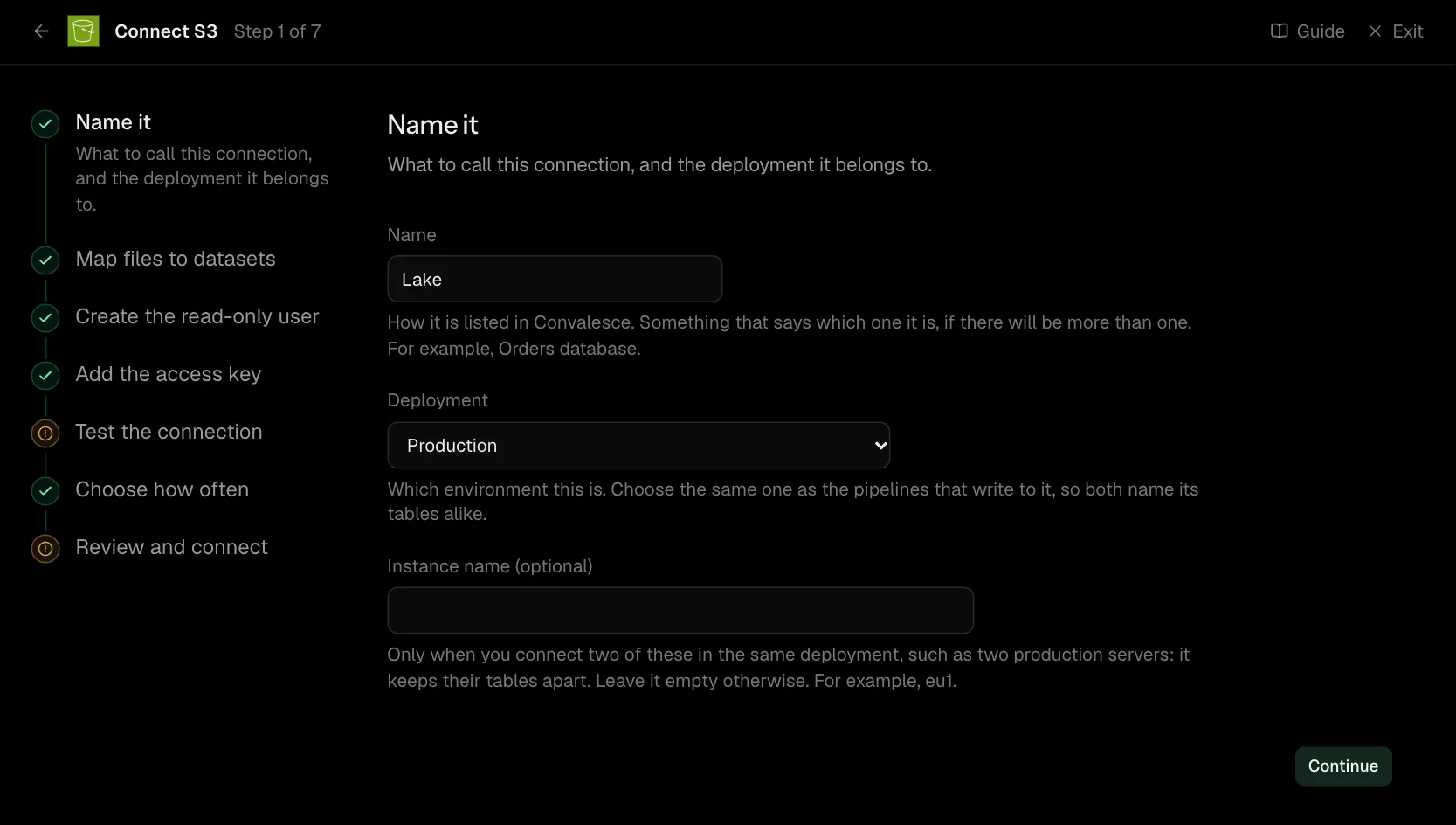
| What it asks for | Needed | What to enter |
|---|---|---|
| Name | Yes | How it is listed in Convalesce. Something that says which one it is, if there will be more than one. For example, Orders database. |
| Deployment | Yes | Which environment this is. Choose the same one as the pipelines that write to it, so both name its tables alike. Choose one of: Production, Staging, Development, Test, Quality assurance, User acceptance, Pre-production, Sandbox. |
| Instance name | Optional | Only when you connect two of these in the same deployment, such as two production servers: it keeps their tables apart. Leave it empty otherwise. For example, eu1. |
Step 2 of 7: Map files to datasets
Which files make up which dataset.
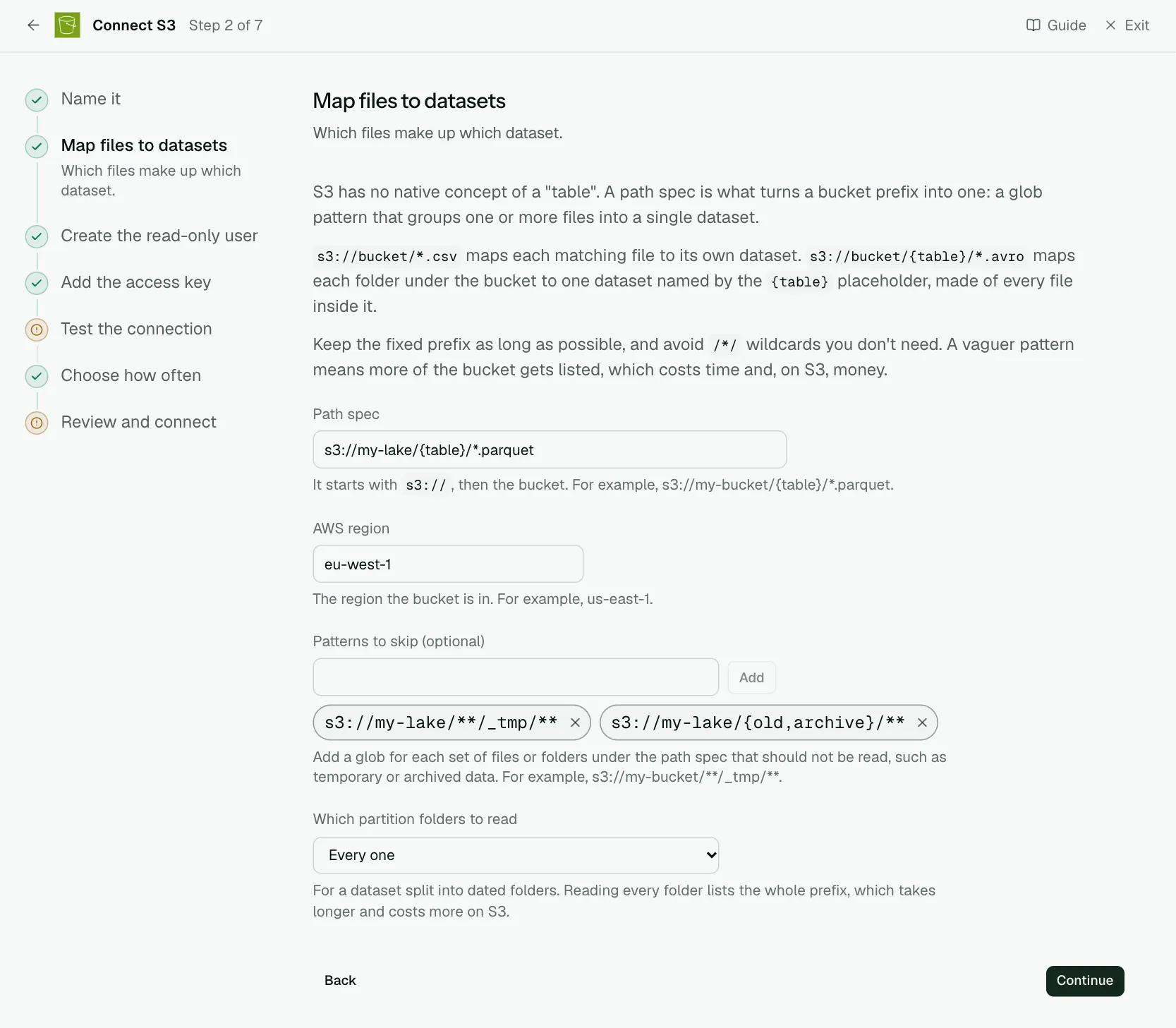
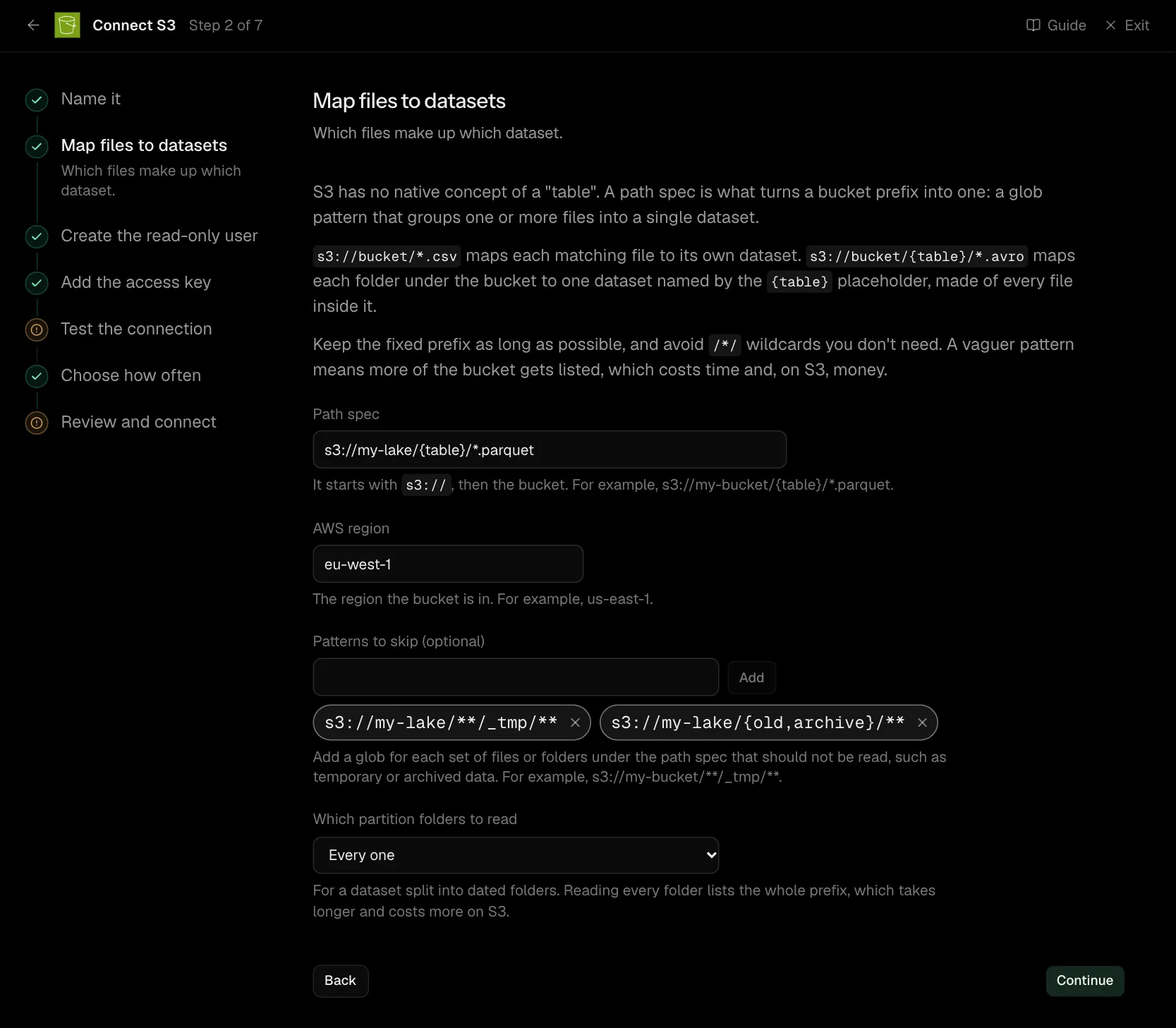
S3 has no native concept of a "table". A path spec is what turns a bucket prefix into one: a glob pattern that groups one or more files into a single dataset.
s3://bucket/*.csv maps each matching file to its own dataset. s3://bucket/{table}/*.avro maps each folder under the bucket to one dataset named by the {table} placeholder, made of every file inside it.
Keep the fixed prefix as long as possible, and avoid /*/ wildcards you don't need. A vaguer pattern means more of the bucket gets listed, which costs time and, on S3, money.
| What it asks for | Needed | What to enter |
|---|---|---|
| Path spec | Yes | It starts with s3://, then the bucket. For example, s3://my-bucket/{table}/*.parquet. |
| AWS region | Yes | The region the bucket is in. For example, us-east-1. |
| Patterns to skip | Optional | Add a glob for each set of files or folders under the path spec that should not be read, such as temporary or archived data. For example, s3://my-bucket/**/_tmp/**. |
| Which partition folders to read | Optional | For a dataset split into dated folders. Reading every folder lists the whole prefix, which takes longer and costs more on S3. Choose one of: The newest only, The oldest and the newest, Every one. |
Step 3 of 7: Create the read-only user
A read-only IAM user in your account, and its key.
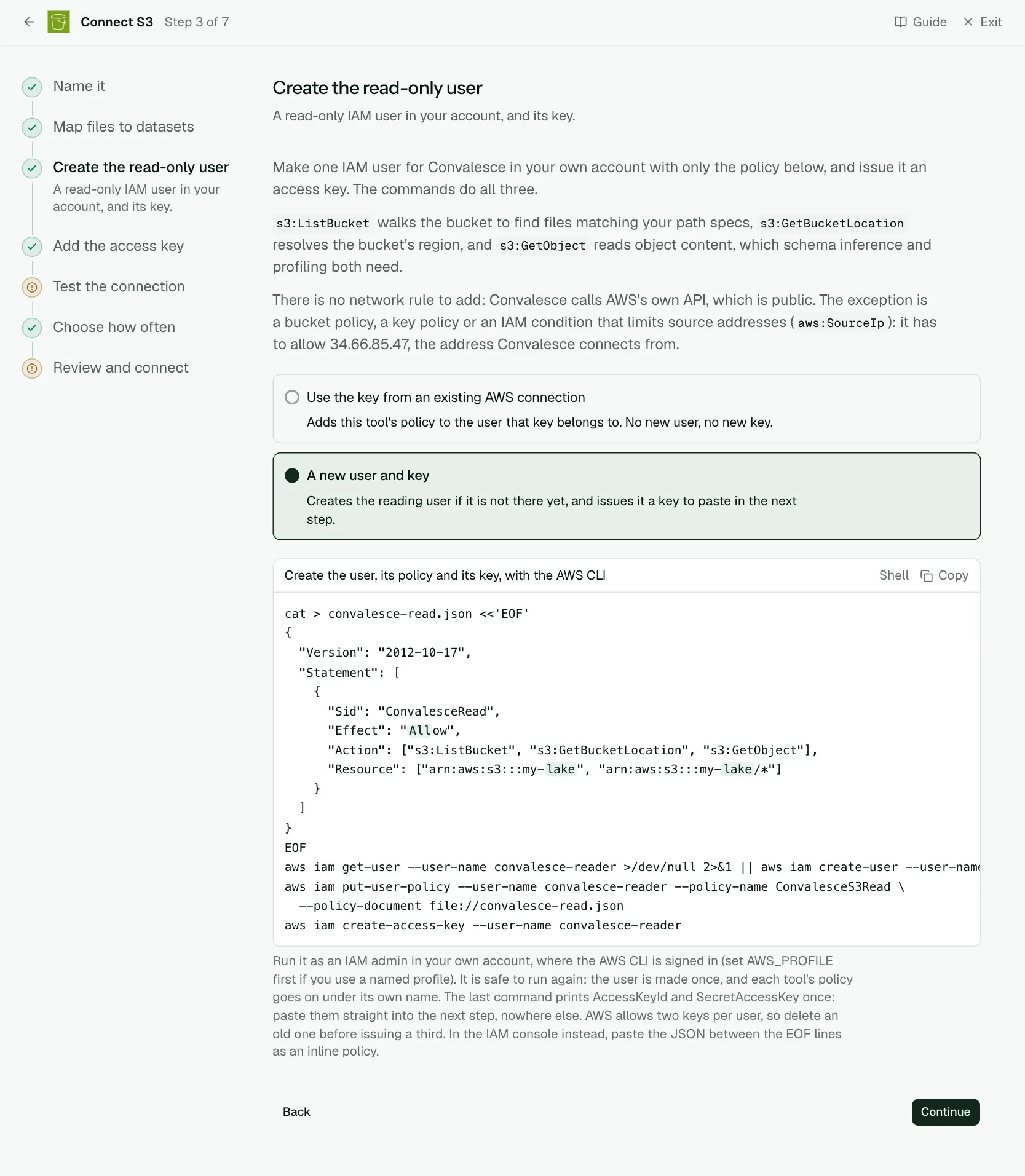
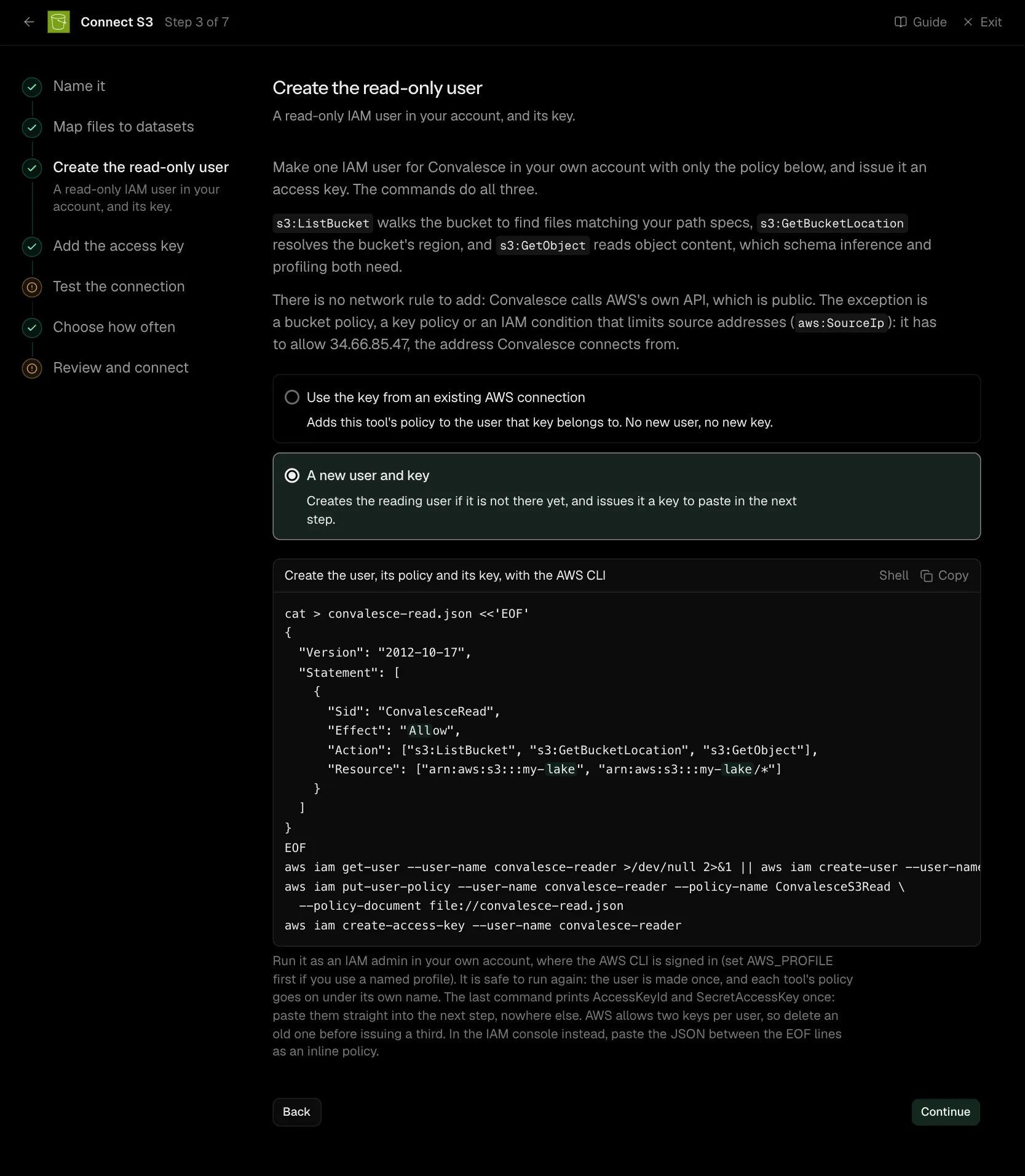
Make one IAM user for Convalesce in your own account with only the policy below, and issue it an access key. The commands do all three.
s3:ListBucket walks the bucket to find files matching your path specs, s3:GetBucketLocation resolves the bucket's region, and s3:GetObject reads object content, which schema inference and profiling both need.
There is no network rule to add: Convalesce calls AWS's own API, which is public. The exception is a bucket policy, a key policy or an IAM condition that limits source addresses (aws:SourceIp): it has to allow 34.66.85.47, the address Convalesce connects from.
cat > convalesce-read.json <<'EOF'
{
  "Version": "2012-10-17",
  "Statement": [
    {
      "Sid": "ConvalesceRead",
      "Effect": "Allow",
      "Action": ["s3:ListBucket", "s3:GetBucketLocation", "s3:GetObject"],
      "Resource": ["arn:aws:s3:::my-lake", "arn:aws:s3:::my-lake/*"]
    }
  ]
}
EOF
aws iam get-user --user-name convalesce-reader >/dev/null 2>&1 || aws iam create-user --user-name convalesce-reader
aws iam put-user-policy --user-name convalesce-reader --policy-name ConvalesceS3Read \
  --policy-document file://convalesce-read.json
aws iam create-access-key --user-name convalesce-reader
Run it as an IAM admin in your own account, where the AWS CLI is signed in (set AWS_PROFILE first if you use a named profile). It is safe to run again: the user is made once, and each tool's policy goes on under its own name. The last command prints AccessKeyId and SecretAccessKey once: paste them straight into the next step, nowhere else. AWS allows two keys per user, so delete an old one before issuing a third. In the IAM console instead, paste the JSON between the EOF lines as an inline policy.
Step 4 of 7: Add the access key
An access key for the reading identity.
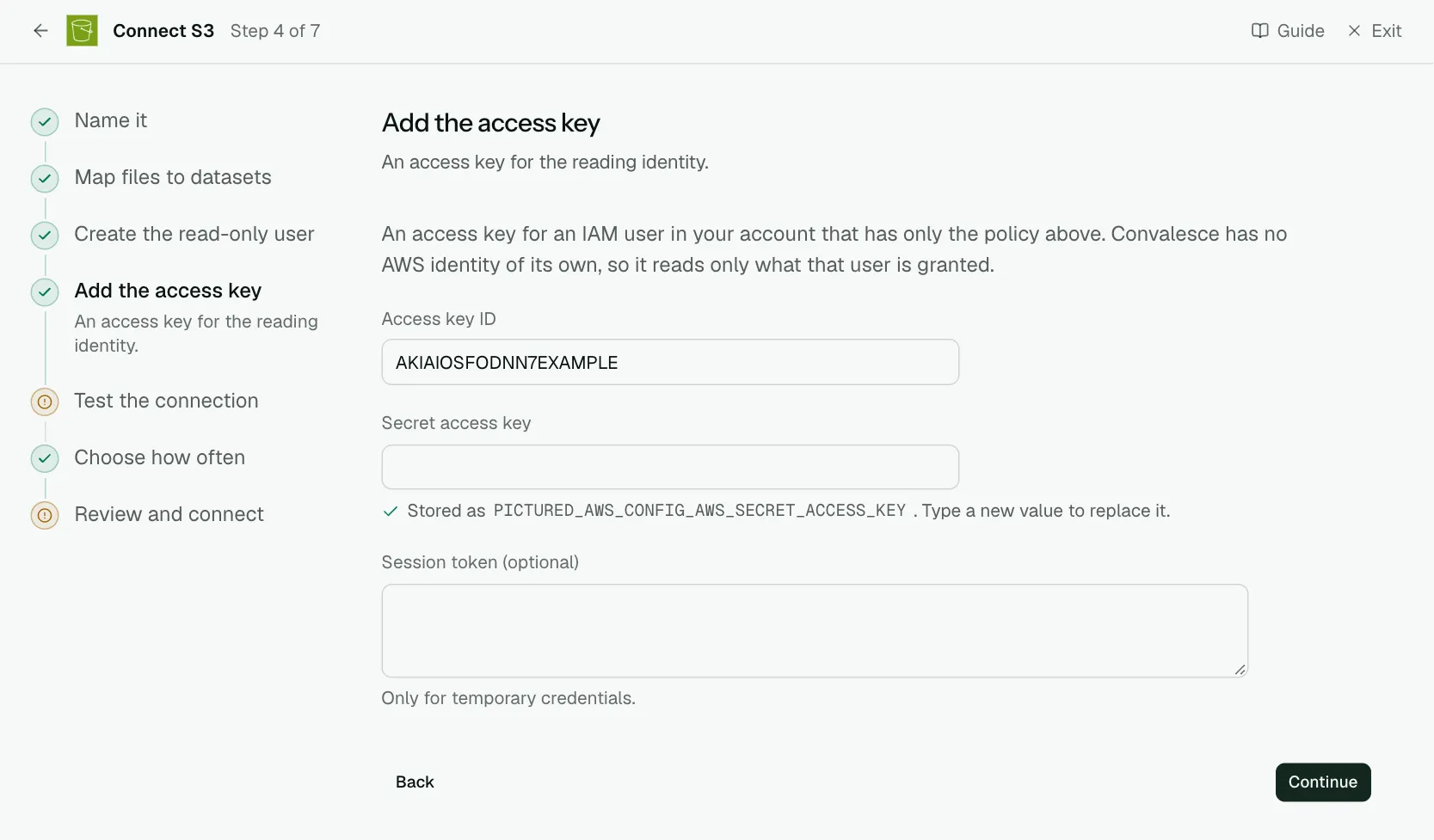
An access key for an IAM user in your account that has only the policy above. Convalesce has no AWS identity of its own, so it reads only what that user is granted.
| What it asks for | Needed | What to enter |
|---|---|---|
| Access key ID | Yes | |
| Secret access key | Yes | Stored encrypted the moment you enter it, and shown to no one afterwards. |
| Session token | Optional | Only for temporary credentials. Stored encrypted the moment you enter it, and shown to no one afterwards. |
Step 5 of 7: Test the connection
Check Convalesce can reach it with what you entered.
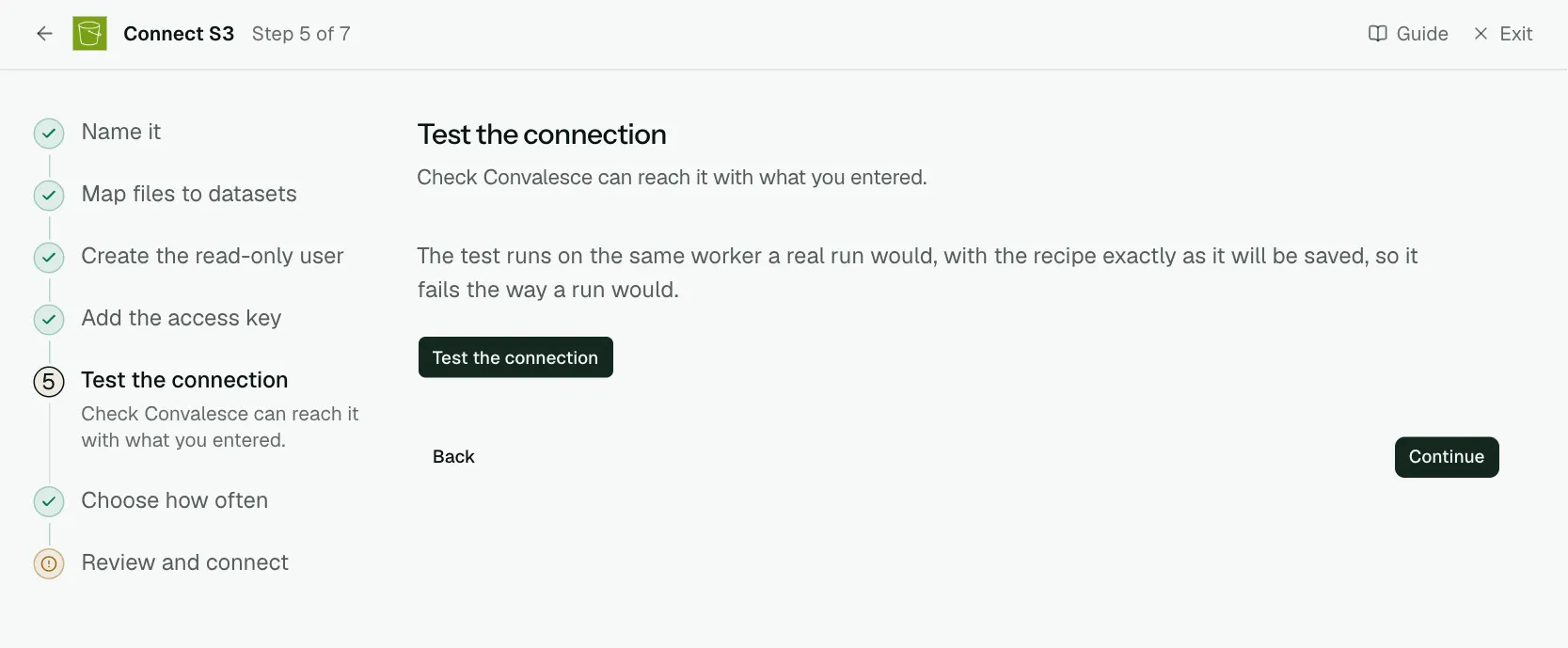
The test runs on the same worker a real run would, with the recipe exactly as it will be saved, so it fails the way a run would.
Step 6 of 7: Choose how often
How often Convalesce reads it.
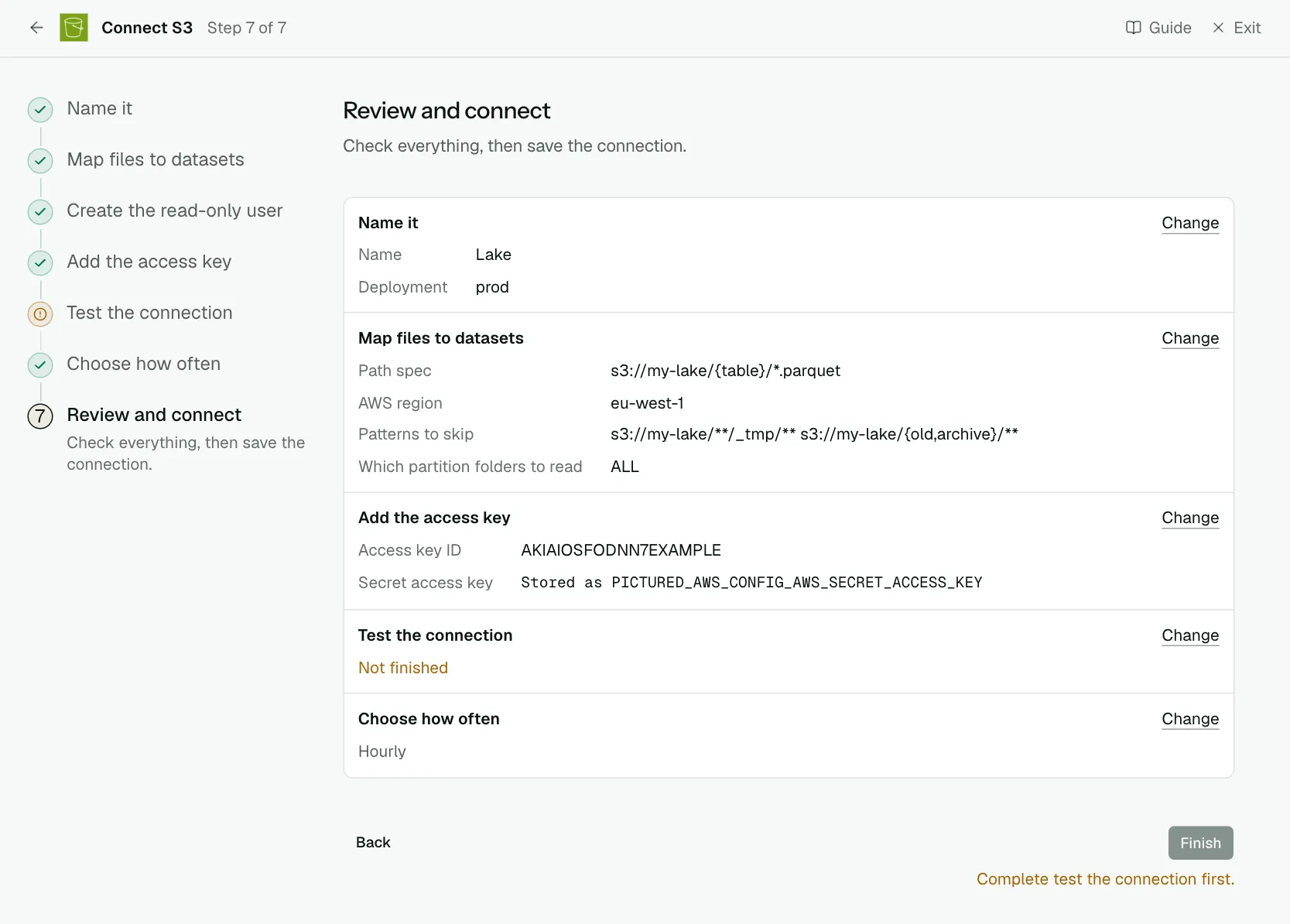
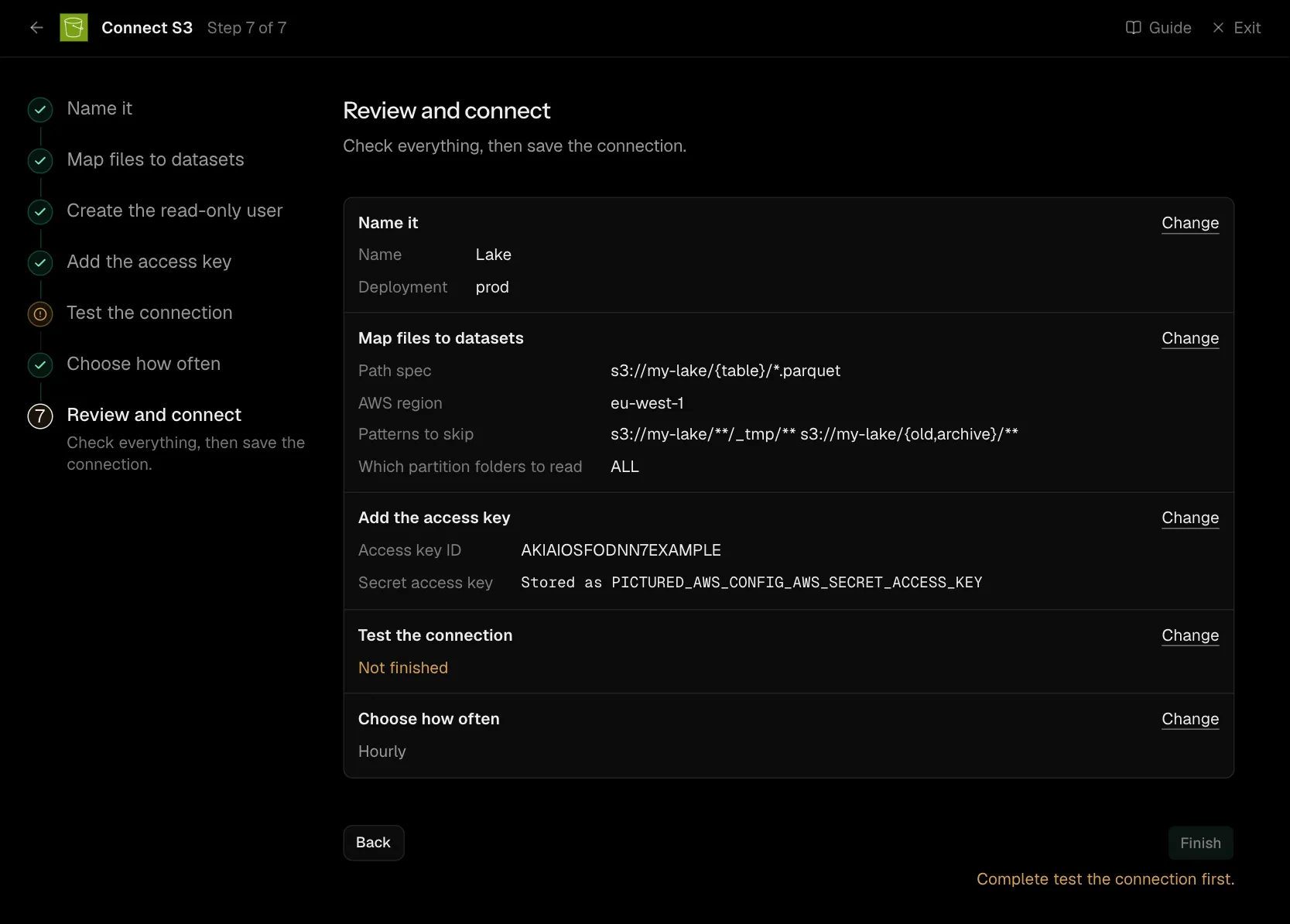
Step 7 of 7: Review and connect
Check everything, then save the connection.
Network
There is no network rule to add: Convalesce calls AWS's own API, which is public. The exception is a bucket policy, a key policy or an IAM condition that limits source addresses (aws:SourceIp): it has to allow 34.66.85.47, the address Convalesce connects from.
Writing a path spec
A path spec is a pattern that starts with s3:// and the bucket. s3://my-bucket/*.csv makes each matching file its own dataset. s3://my-bucket/{table}/*.parquet makes each folder one dataset, named by the folder, made of every file inside it.
Use * for one level and ** for any depth. Keep the fixed part at the front as long as you can: the longer it is, the less of the bucket is listed.
Patterns to skip takes one pattern for each set of files or folders to leave out, such as s3://my-bucket/**/_tmp/**.
Settings
What the connect screen asks for
| Input | On the step | Needed |
|---|---|---|
| Name | Name it | Yes |
| Deployment | Name it | Yes |
| Instance name | Name it | Optional |
| Path spec | Map files to datasets | Yes |
| AWS region | Map files to datasets | Yes |
| Patterns to skip | Map files to datasets | Optional |
| Which partition folders to read | Map files to datasets | Optional |
| Access key ID | Add the access key | Yes |
| Secret access key | Add the access key | Yes |
| Session token | Add the access key | Optional |
Set for you
These are the same on every connection. The connect screen does not ask for them.
| What it means | Setting |
|---|---|
A path spec can use ** for any depth. | path_specs.0.allow_double_stars: true |
| Row counts and column statistics are not read. | profiling.enabled: false |
| Something that is no longer there is marked as removed. | stateful_ingestion.enabled: true |
Troubleshooting
AccessDenied. The policy has to be attached to the user whose key you entered, for the bucket in the path spec. Run the commands on Create the read-only user again.- No datasets appear. The path spec matches no files: check the bucket name, the folder levels, and the file extension.
- Too many small datasets. Use
{table}on the folder that should be one dataset, so its files are read together.