Collaboration
Slack
Connect Slack so a channel is told when something breaks and when it is fixed.
Convalesce posts to one Slack channel when an incident opens, when its cause is found, when a fix needs you, and when it resolves.
Before you start
- A Slack workspace, and the channel you want the messages in.
- Permission to add an app to that channel.
Connect with Add to Slack
- Open Settings in the console and go to Notifications.
- On the Slack row, press Add to Slack.
- Slack opens. Choose the workspace, then the channel to post in, and allow it.
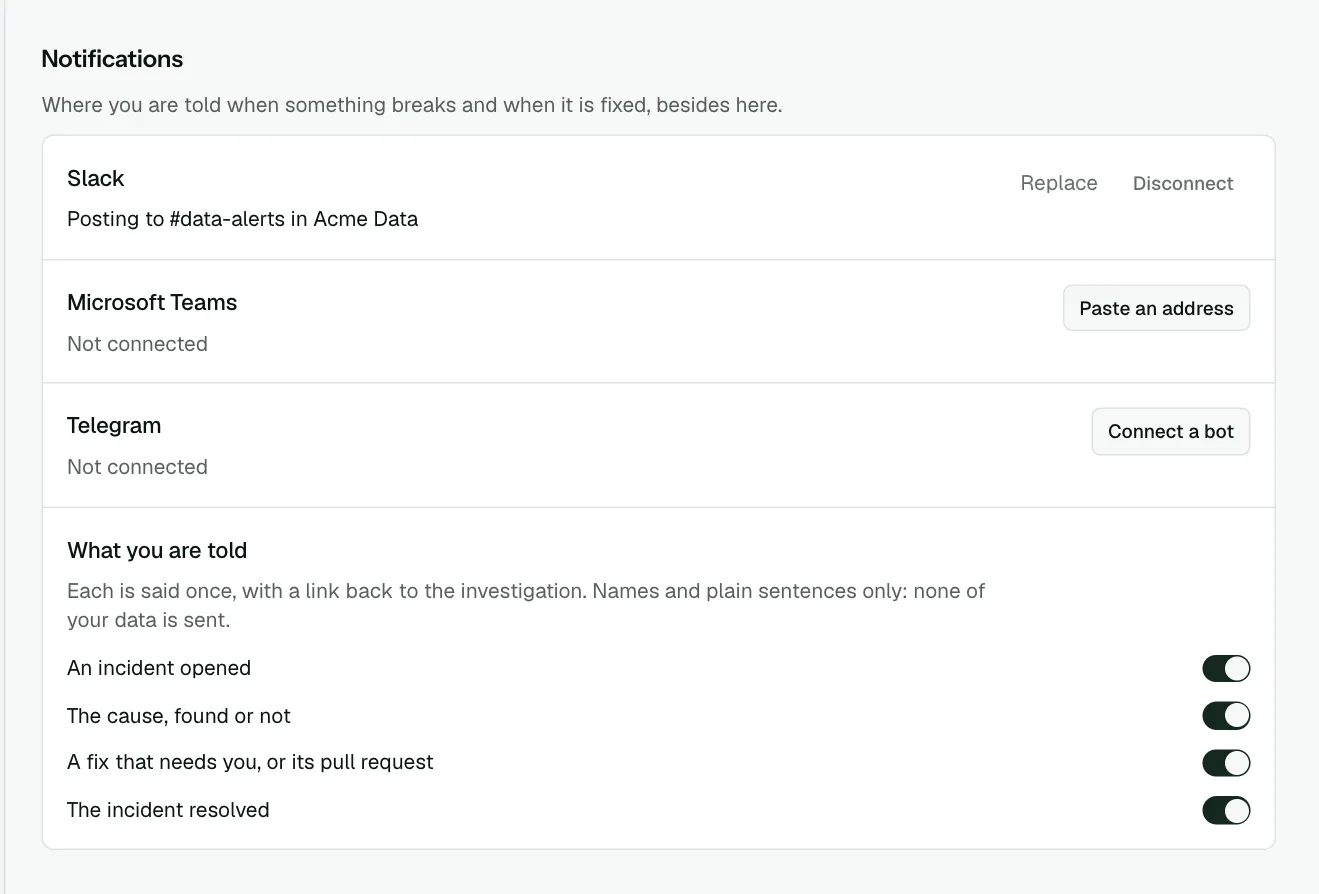
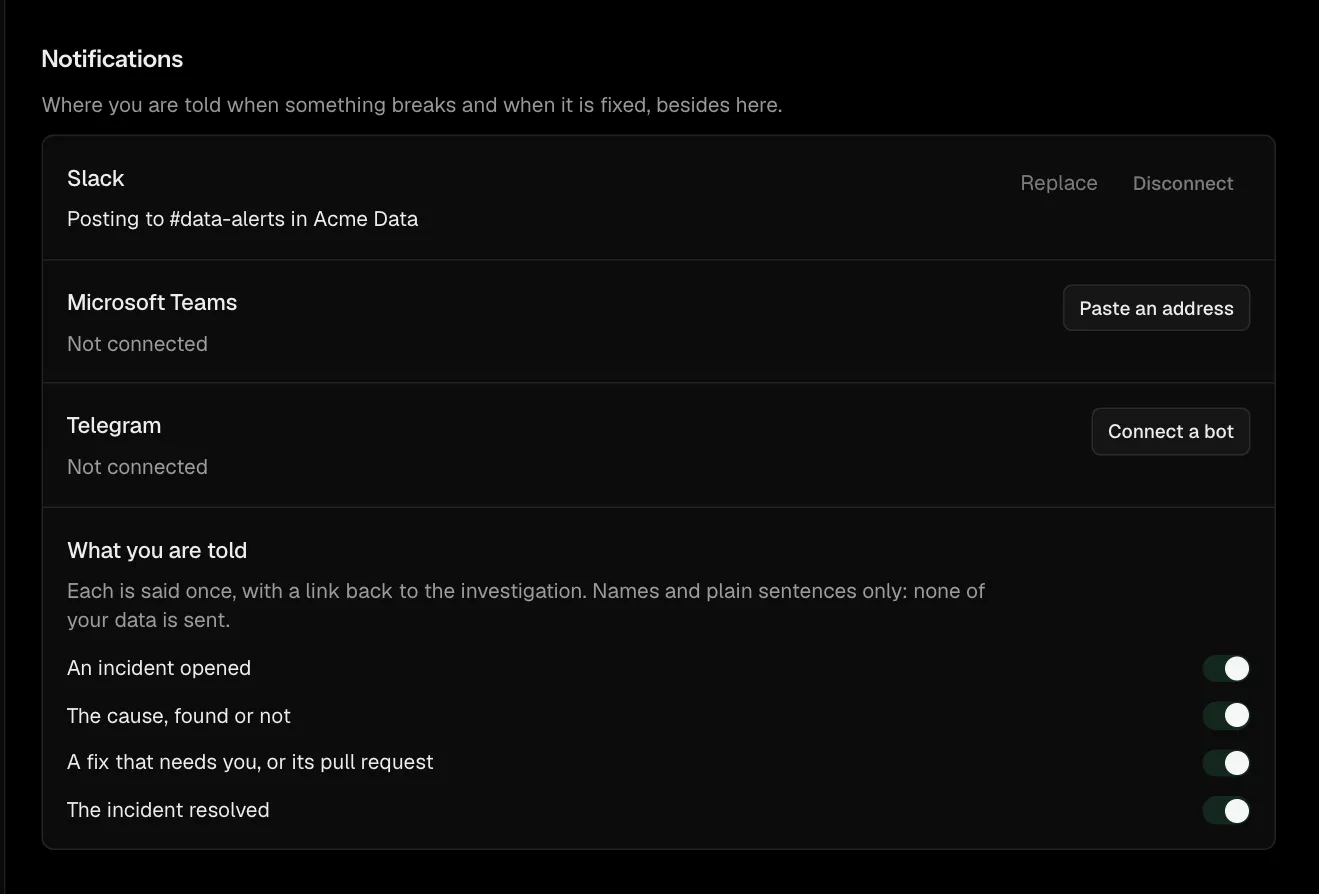
- You come back to Settings. The row reads Posting to with the channel's name.
Connect with a webhook address
- In Slack, add an incoming webhook for the channel and copy its address. Slack's guide, Sending messages using incoming webhooks, shows each step: make a Slack app, turn on incoming webhooks, choose the channel and allow it. The address starts with
https://hooks.slack.com/services/. - On Settings, under Notifications, press Paste an address on the Slack row.
- Paste the address into Address and press Connect.
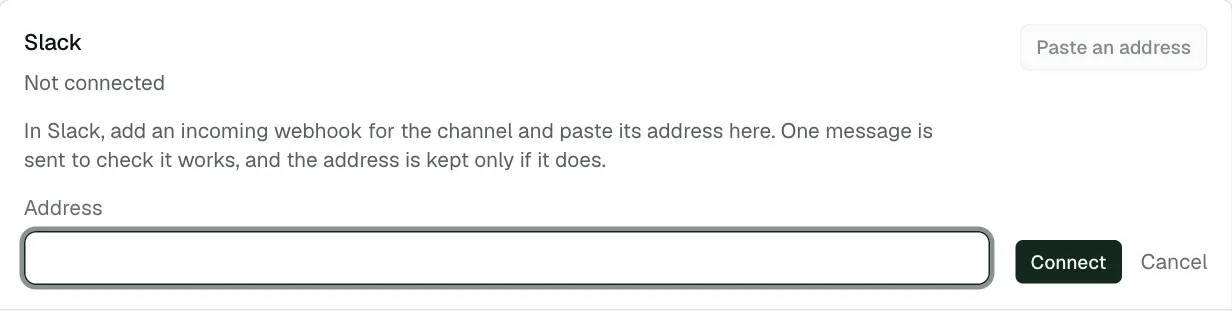
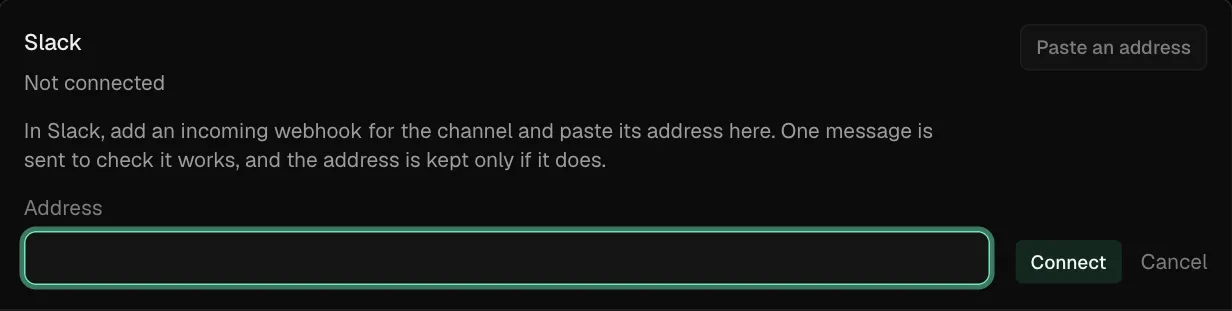
One message is sent to check it works, and the address is kept only if it does.
What you are told
Choose the moments on Settings, under Notifications, in What you are told:
- An incident opened
- The cause, found or not
- A fix that needs you, or its pull request
- The incident resolved
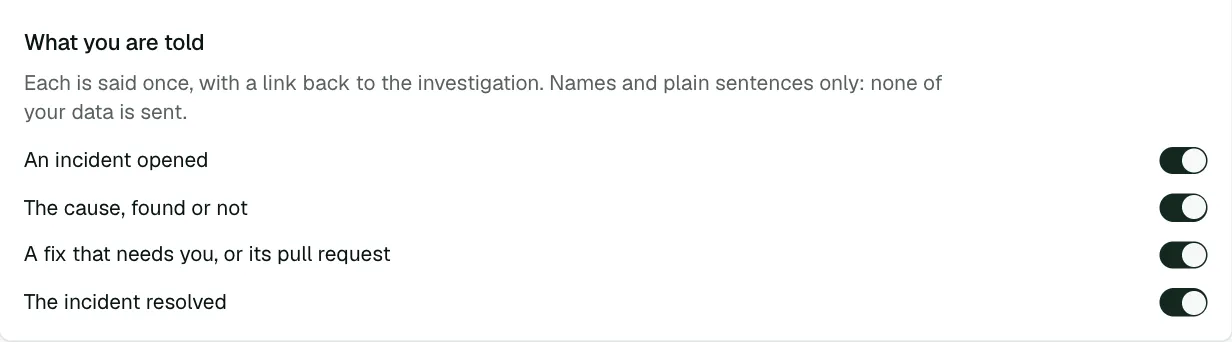
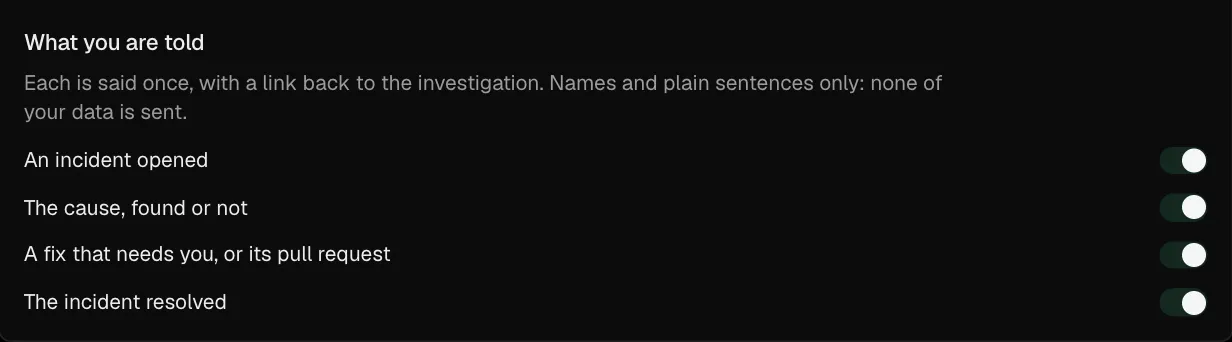
Each is said once, with a link back to the investigation. Messages carry names and plain sentences only: none of your data is sent.
Change the channel or disconnect
- Replace connects a different channel in place of this one.
- Disconnect stops the messages and deletes the address.
Troubleshooting
- The check message did not arrive. Copy the webhook address again from Slack and paste it whole. Slack's guide shows where the address is listed.
- Add to Slack did not finish. The row says why. Start again and choose a channel you can add apps to.
- Messages stopped. The webhook or the app was removed in Slack. Press Replace and connect again.